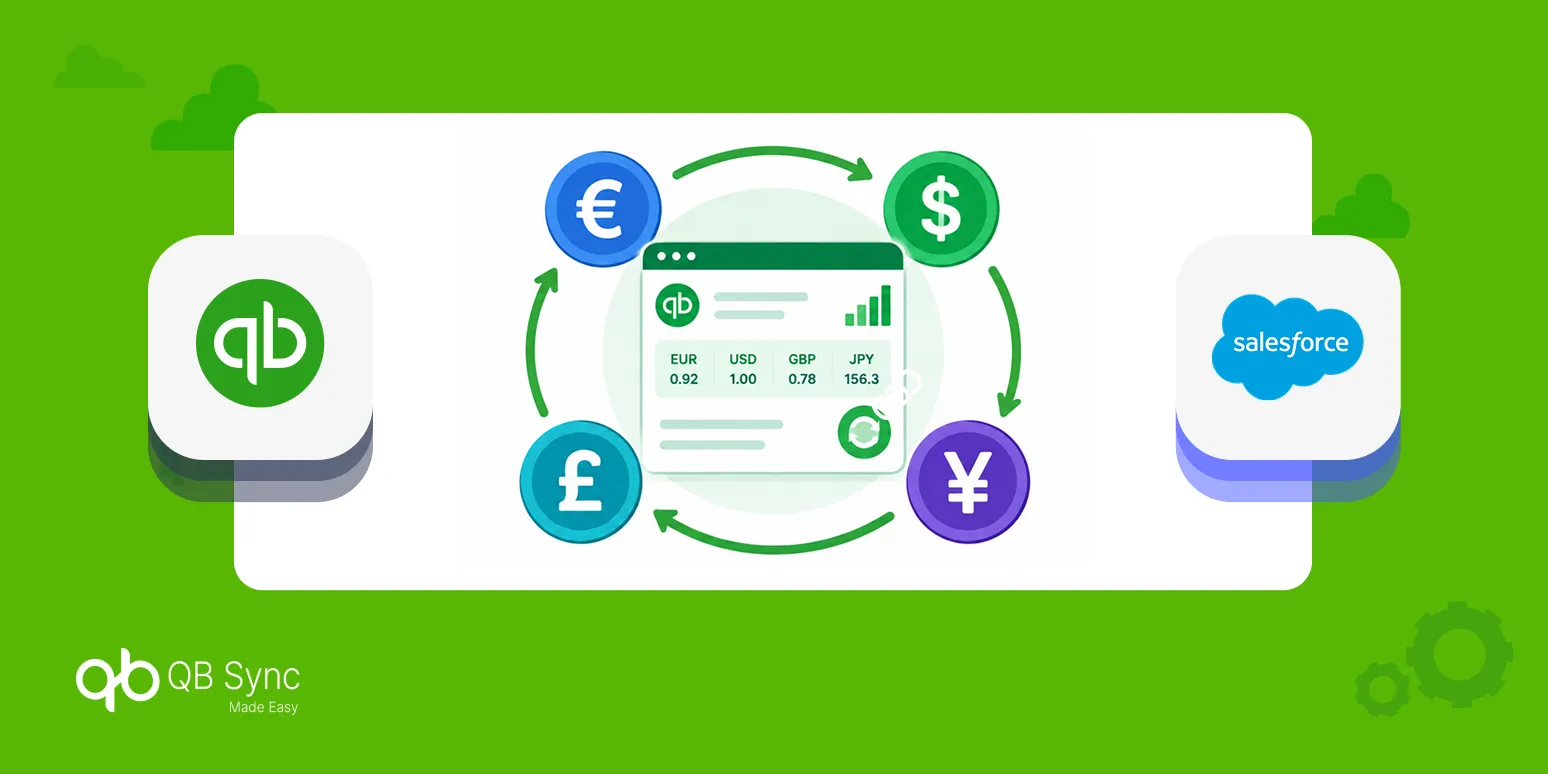
Managing financial transactions in multiple currencies can be complex for businesses using Salesforce and QuickBooks Online (QBO). QB Sync Made Easy simplifies this with its Exchange Rate Synchronization feature, which retrieves and maintains exchange-rate information from QBO in Salesforce. This feature supports multi-currency management by providing options to store the latest rates or keep daily historical records, reducing the need for manual updates and minimizing the risk of inaccurate financial data. The blog outlines how to configure this feature, monitor synchronization status, and utilize exchange rates in Salesforce workflows, enhancing overall financial processing efficiency.
Managing financial transactions across multiple currencies can become challenging when a business uses both Salesforce and QuickBooks Online (QBO). Exchange rates fluctuate regularly, and keeping currency information consistent across both platforms can require additional effort, especially when handling multi-currency management.
To make this easier, QB Sync Made Easy provides an Exchange Rate Synchronization feature that retrieves exchange-rate information from QuickBooks Online and makes it available within Salesforce. This helps businesses maintain currency information without depending entirely on manual updates.
In this blog, we will walk through the feature, its configuration, and how businesses can use synchronized exchange rates in their Salesforce processes.
Why Is Exchange Rate Synchronization Important?
Businesses using Salesforce and QuickBooks Online may synchronize invoices, estimates, bills, and other financial records. When these records involve multiple currencies, the appropriate exchange-rate information may be required to support accurate financial processing.
For example, a business may use USD as its home currency while creating invoices in EUR or GBP. The exchange-rate information required by its business processes must be available and correctly applied during synchronization.
Without a reliable way to maintain QuickBooks Online Exchange Rates in Salesforce, businesses may face several challenges:
- Manual maintenance: Administrators may need to retrieve exchange rates and maintain them manually in Salesforce.
- Frequent currency fluctuations: Exchange rates change over time, making manual updates difficult to maintain consistently.
- Risk of inaccurate financial data: Missing or outdated rates can affect financial processing when the appropriate rate is not applied.
- Historical rate requirements: Some business processes require exchange-rate information associated with a particular date.
- Different business requirements: Some organizations need only the latest rate, while others need to retain daily historical records.
QB Sync Made Easy addresses these challenges by providing a centralized way to retrieve and store exchange-rate information from QuickBooks Online within Salesforce. This also supports businesses using QuickBooks Salesforce Integration to keep financial information connected across both platforms.
Introducing Exchange Rate Feature
The Exchange Rate Sync feature in QB Sync Made Easy retrieves exchange-rate information from QuickBooks Online and maintains it as Exchange Rate records in Salesforce. It supports multi-currency management by giving businesses access to current and historical exchange-rate information within their Salesforce environment.
The feature provides two storage modes:
- Latest Rate Only — Maintains the latest rate for each currency pair.
- Keep Daily History — Maintains daily exchange-rate records to preserve historical information.
Users can also configure automatic synchronization, initiate a manual sync when required, and monitor synchronization activity through the Exchange Rate Configuration page.
How to Configure Exchange Rate Synchronization
Follow these steps to configure the Exchange Rate feature in QB Sync Made Easy.
Step 1: Open Exchange Rate Settings
- Log in to Salesforce.
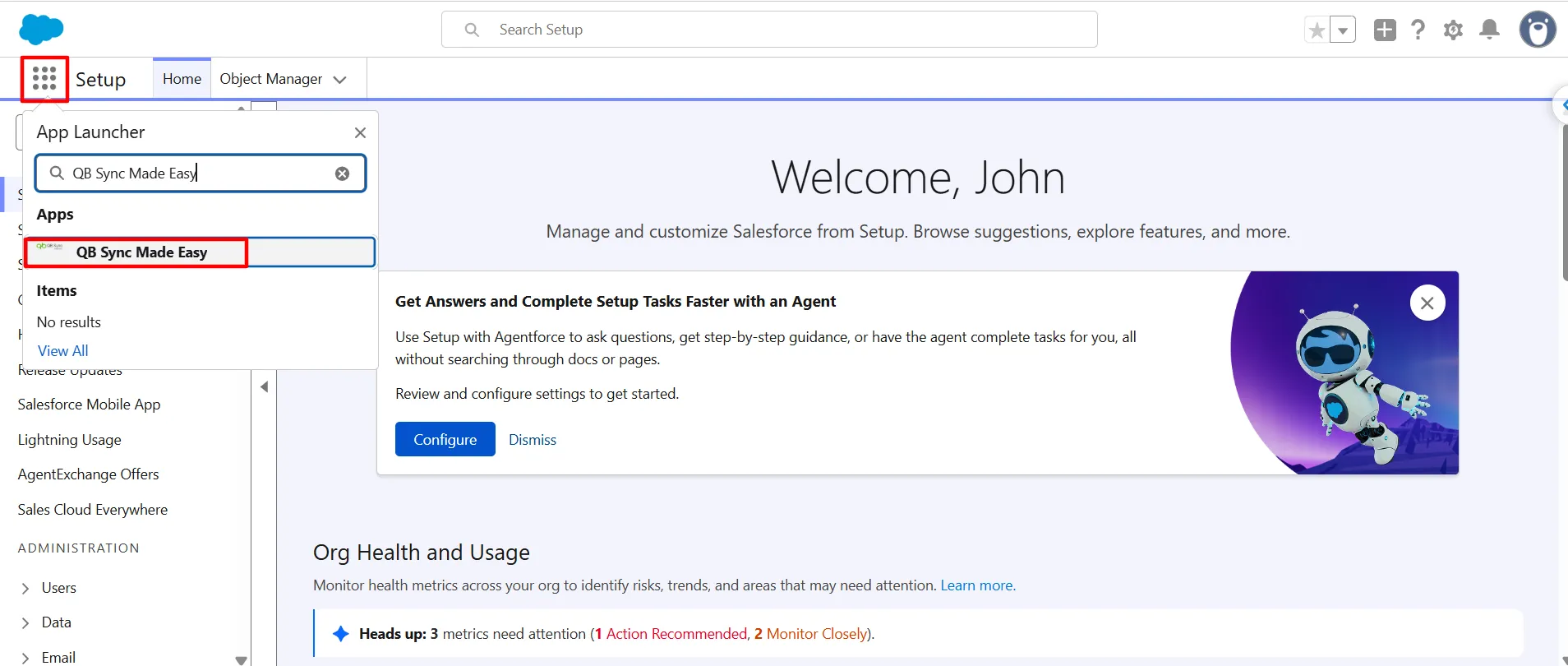
- Open the QB Sync Made Easy application.
3. Navigate to the QB Setup tab.
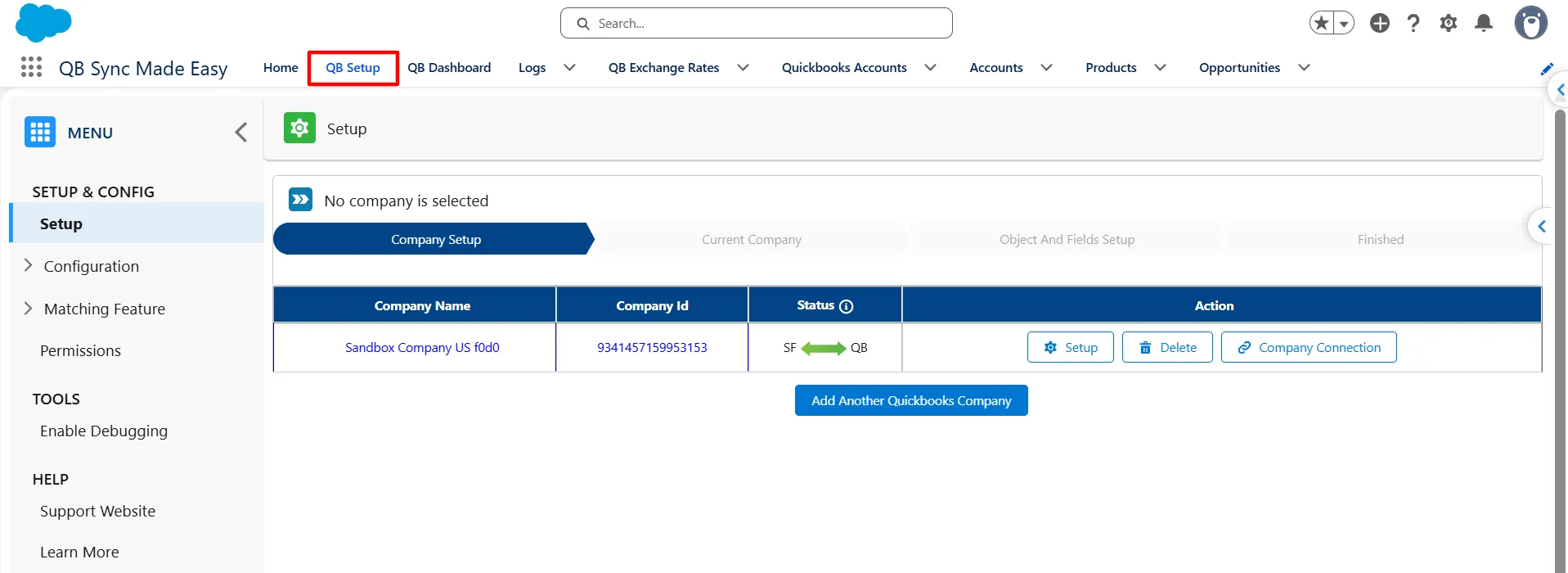
4. Open Exchange Rate Settings.
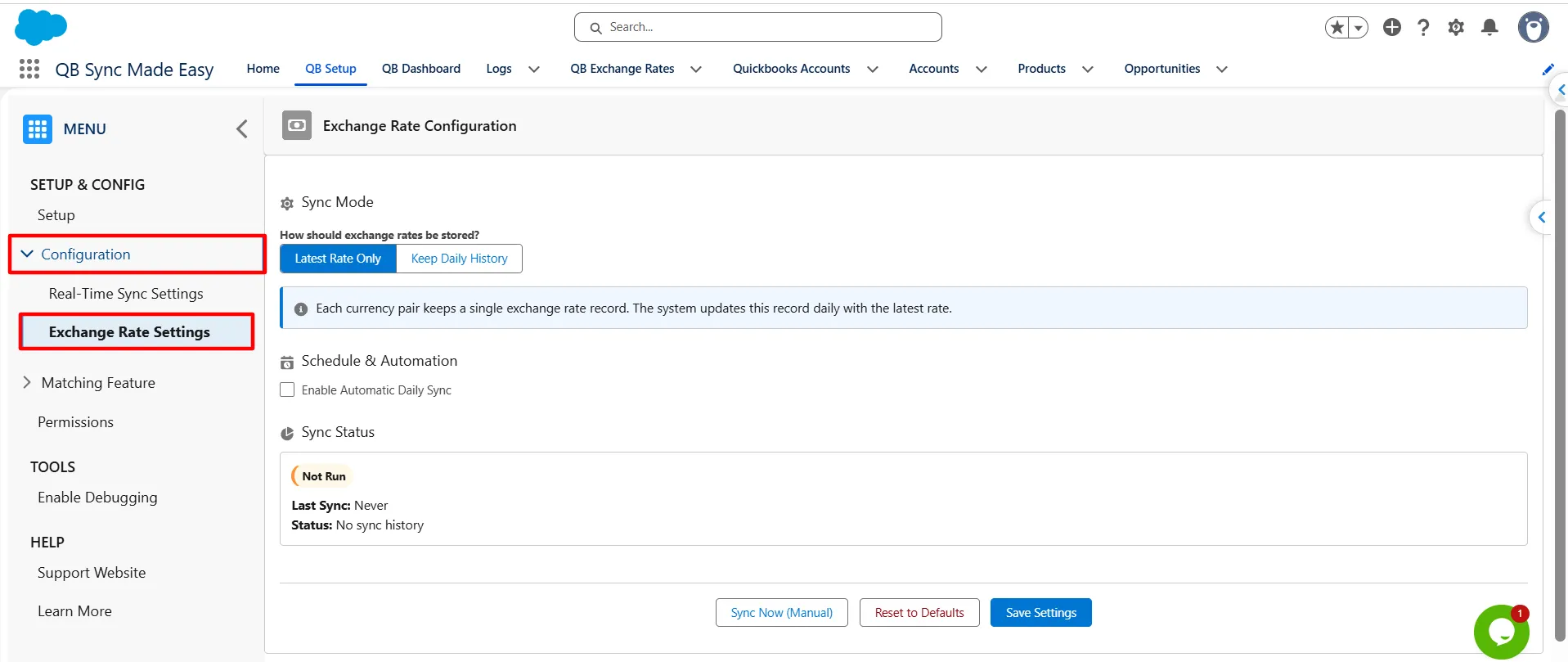
5. Review the available configuration options.
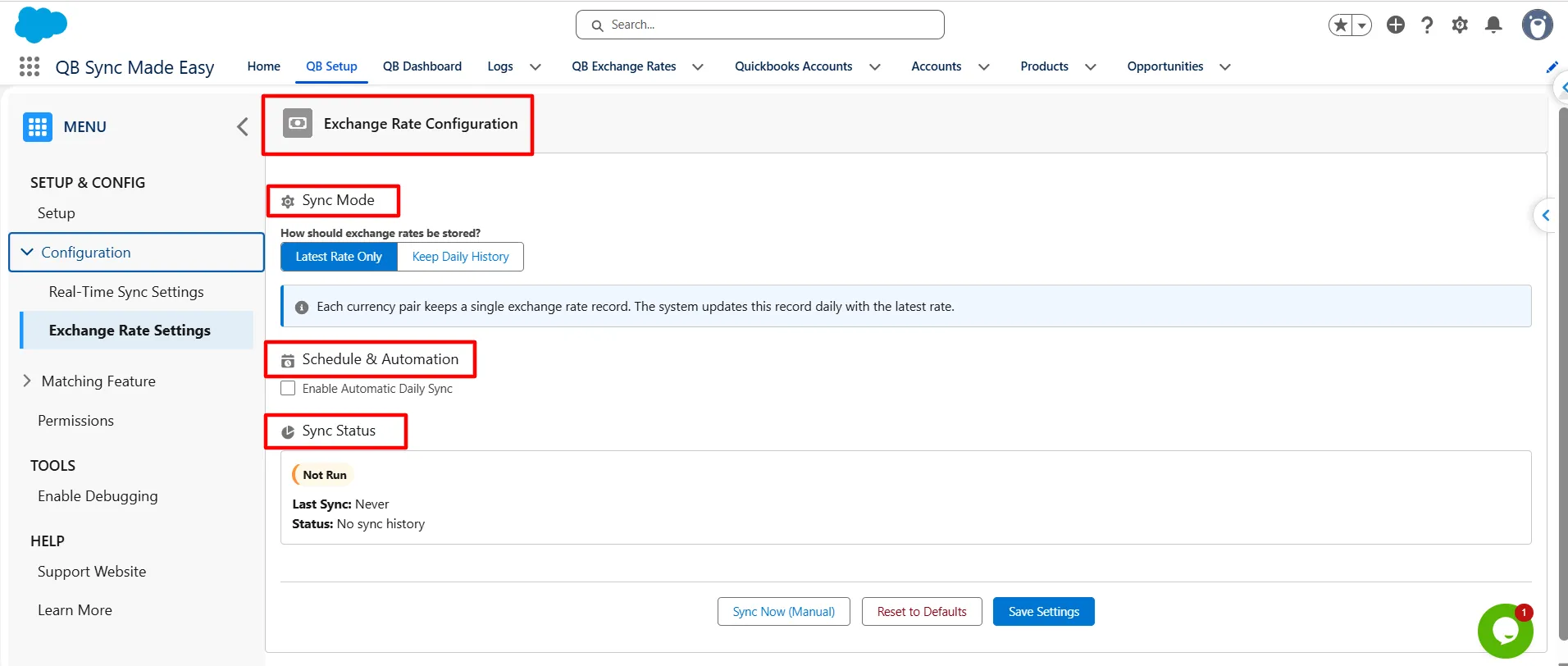
The Exchange Rate Configuration page contains three main sections:
- Sync Mode: Choose how exchange-rate records are stored.
- Schedule & Automation: Configure automatic synchronization.
- Sync Status: Monitor the synchronization status and last sync information.
Step 2: Select the Sync Mode
Under the Sync Mode section, choose how exchange-rate information should be stored.
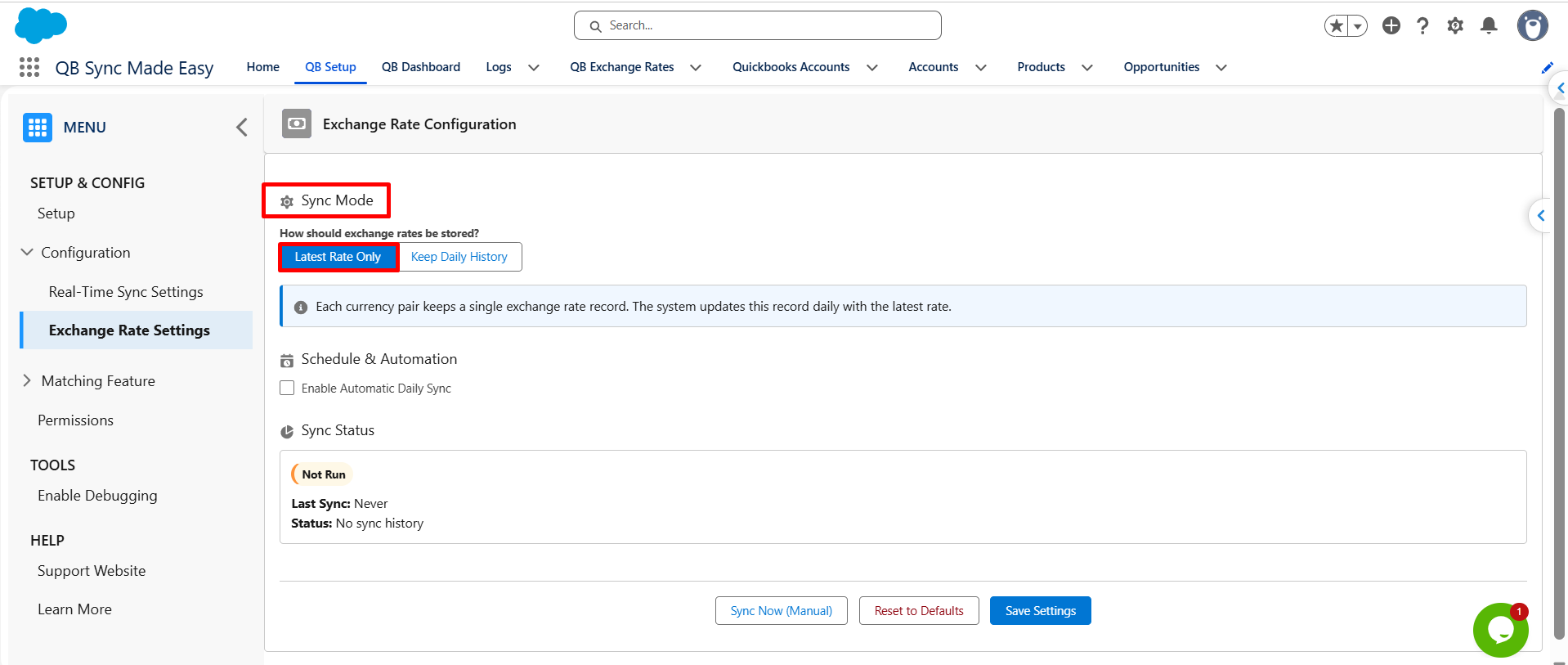
Option 1: Latest Rate Only
Select Latest Rate Only when your business requires only the latest exchange rate for each currency pair.
In this mode, each currency pair maintains a single Exchange Rate record. When synchronization runs, the system updates the existing record with the latest available rate.
This option is suitable for organizations whose business processes primarily require current exchange-rate information.
Key benefits include:
- Maintaining the latest synchronized rate for each currency pair.
- Avoiding unnecessary daily historical records.
- Simplifying access to current exchange-rate information.
- Reducing the need to maintain multiple records for the same currency pair.
Option 2: Keep Daily History
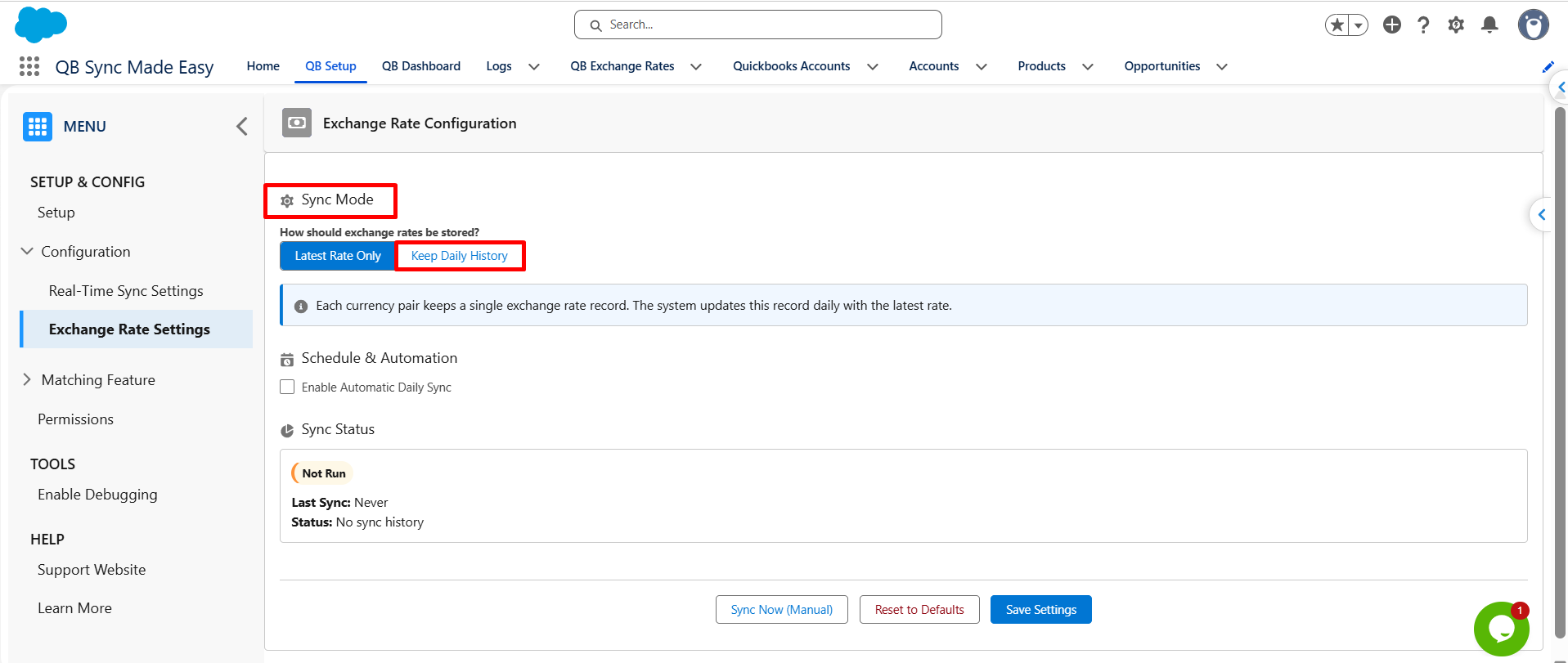
Select Keep Daily History when your business needs to maintain historical exchange-rate information.
In this mode, the system creates a new Exchange Rate record each day for the relevant currency pair, allowing the organization to retain exchange-rate information over time.
This option is useful when business processes need historical rates for date-specific calculations, reporting, or auditing.
Key benefits include:
- Maintaining daily exchange-rate records.
- Preserving historical exchange-rate information.
- Supporting business processes that require date-specific rates.
- Making historical records available for reporting and analysis.
Choose the mode that best matches your business requirements before proceeding with the remaining configuration.
Step 3: Configure Automatic Synchronization
QB Sync Made Easy allows users to schedule exchange-rate synchronization so that exchange-rate information can be updated automatically.
To configure automatic synchronization:
- Navigate to the Schedule & Automation section.
- Select Enable Automatic Daily Sync.
- Choose the preferred synchronization time from the available options.
- Configure the available scheduling options as required.
- Review the next scheduled run information, if displayed.
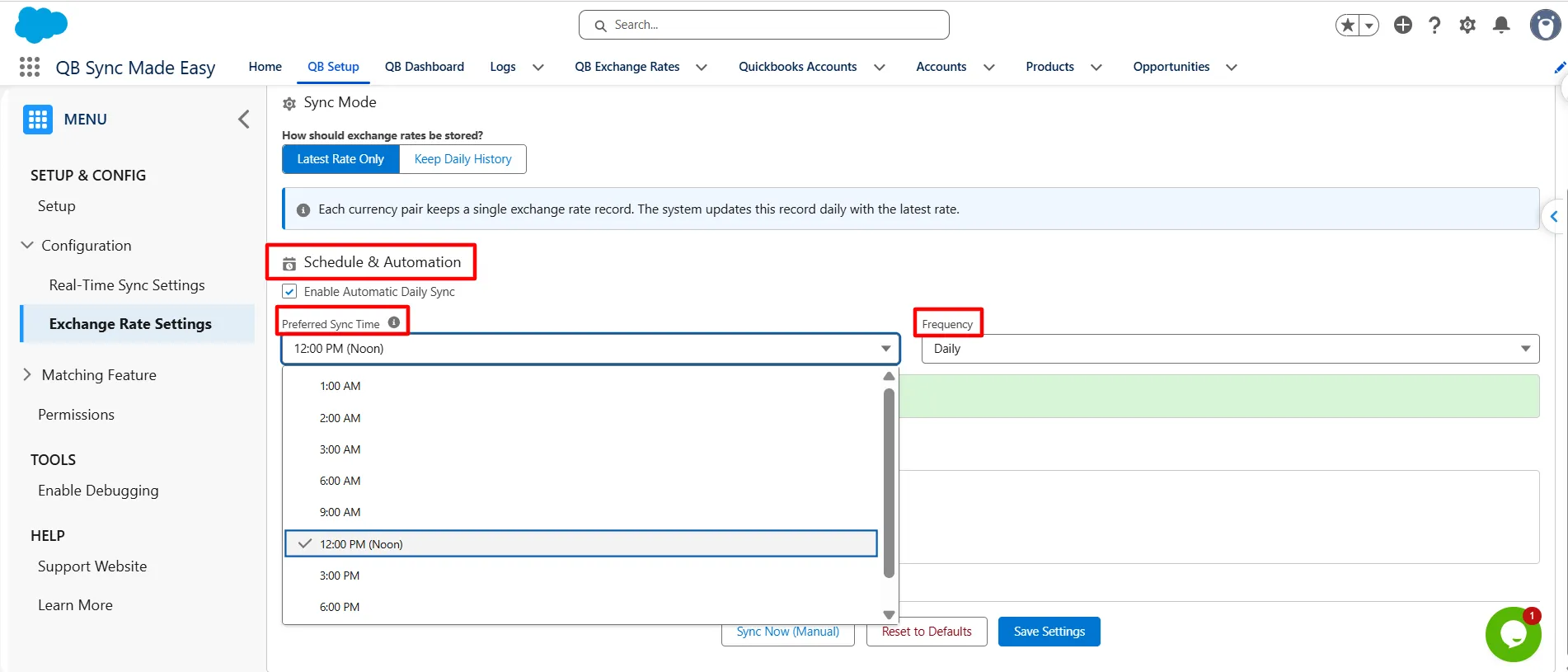
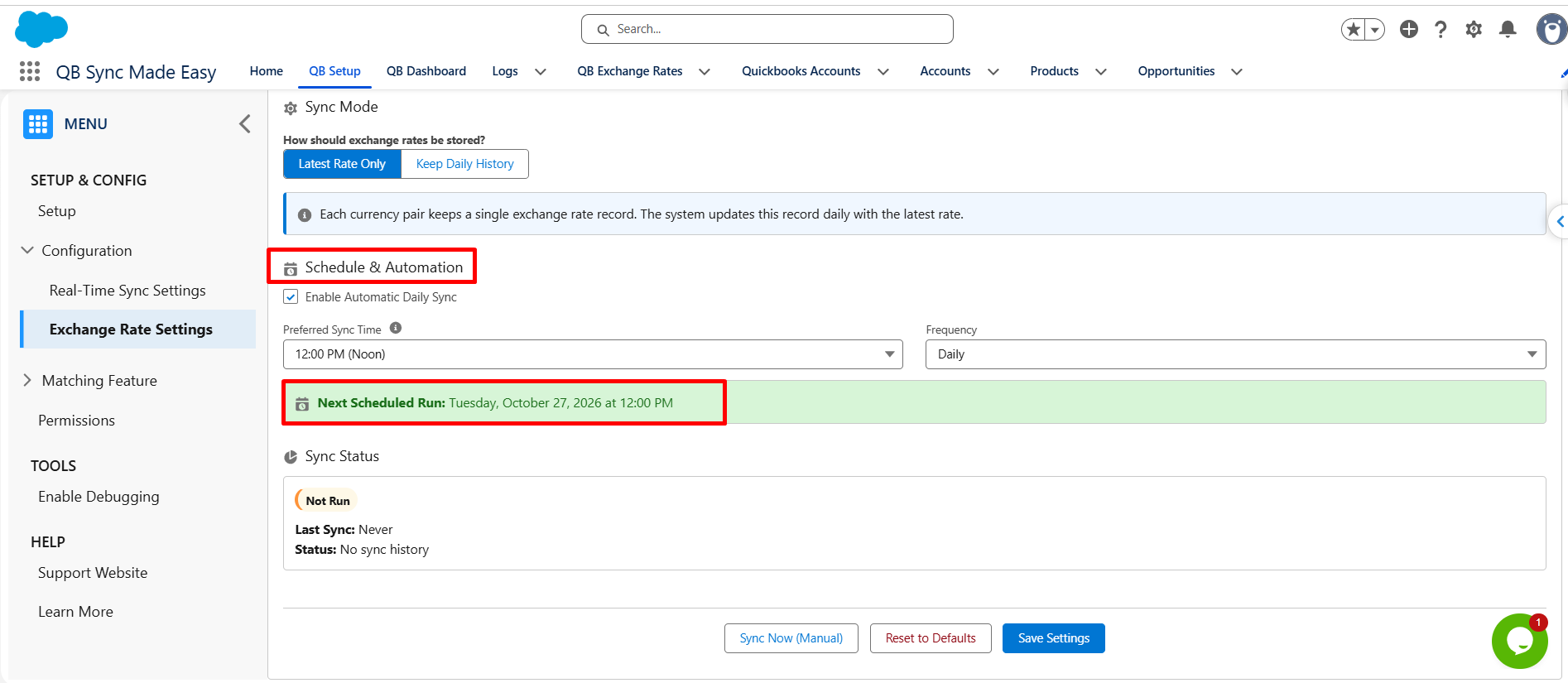
Once automatic synchronization is enabled and the settings are saved, the system runs according to the configured schedule.
The selected Sync Mode determines how the synchronized QuickBooks Online Exchange Rates are stored:
- Latest Rate Only: Updates the existing Exchange Rate record for each currency pair.
- Keep Daily History: Maintains daily Exchange Rate records to preserve historical information.
Automatic synchronization helps reduce manual effort and keeps exchange-rate information updated according to the configured schedule.
Step 4: Run Synchronization Manually
Users can also retrieve exchange-rate information manually whenever required.
To run a manual synchronization:
- Open the Exchange Rate Configuration page.
- Select the required Sync Mode.
- Click Sync Now (Manual).
- Allow the synchronization process to run.
- Review the Sync Status section to check the result.
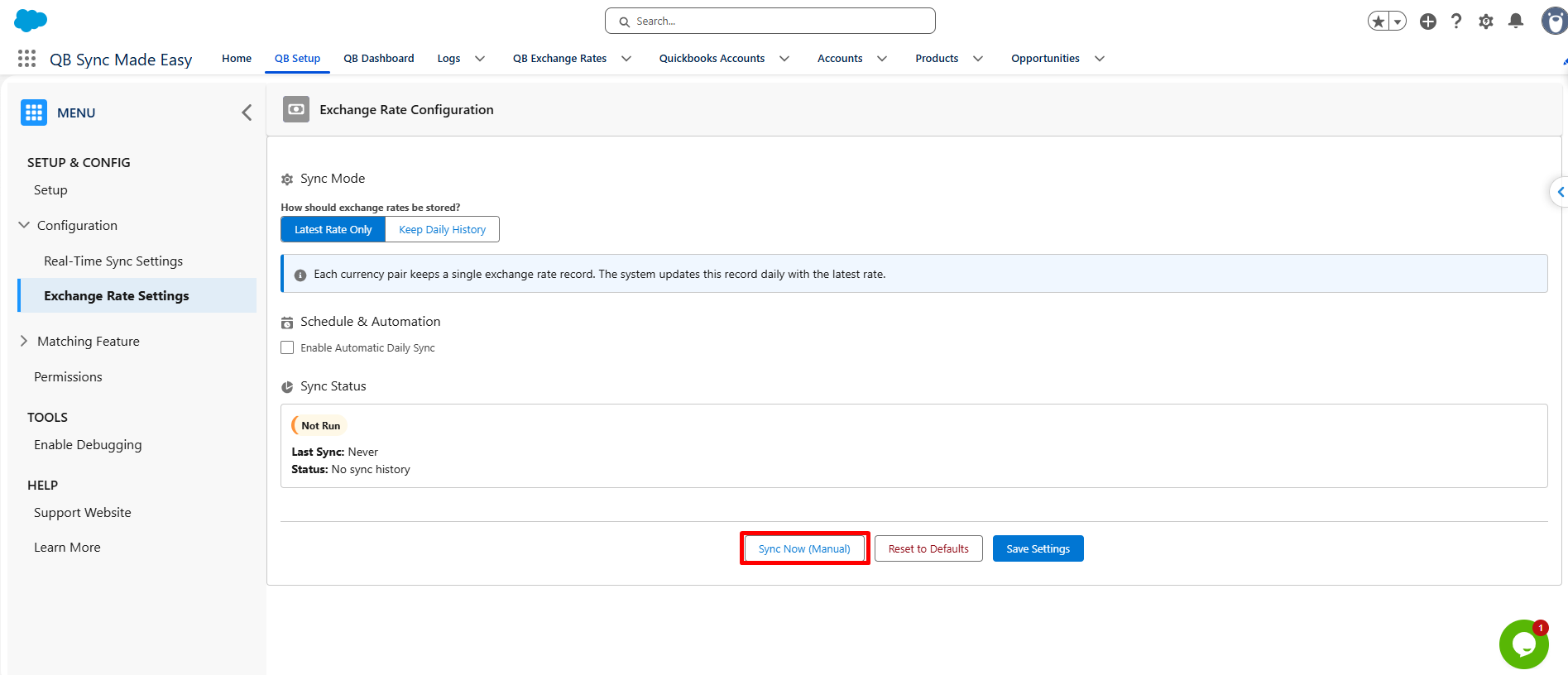
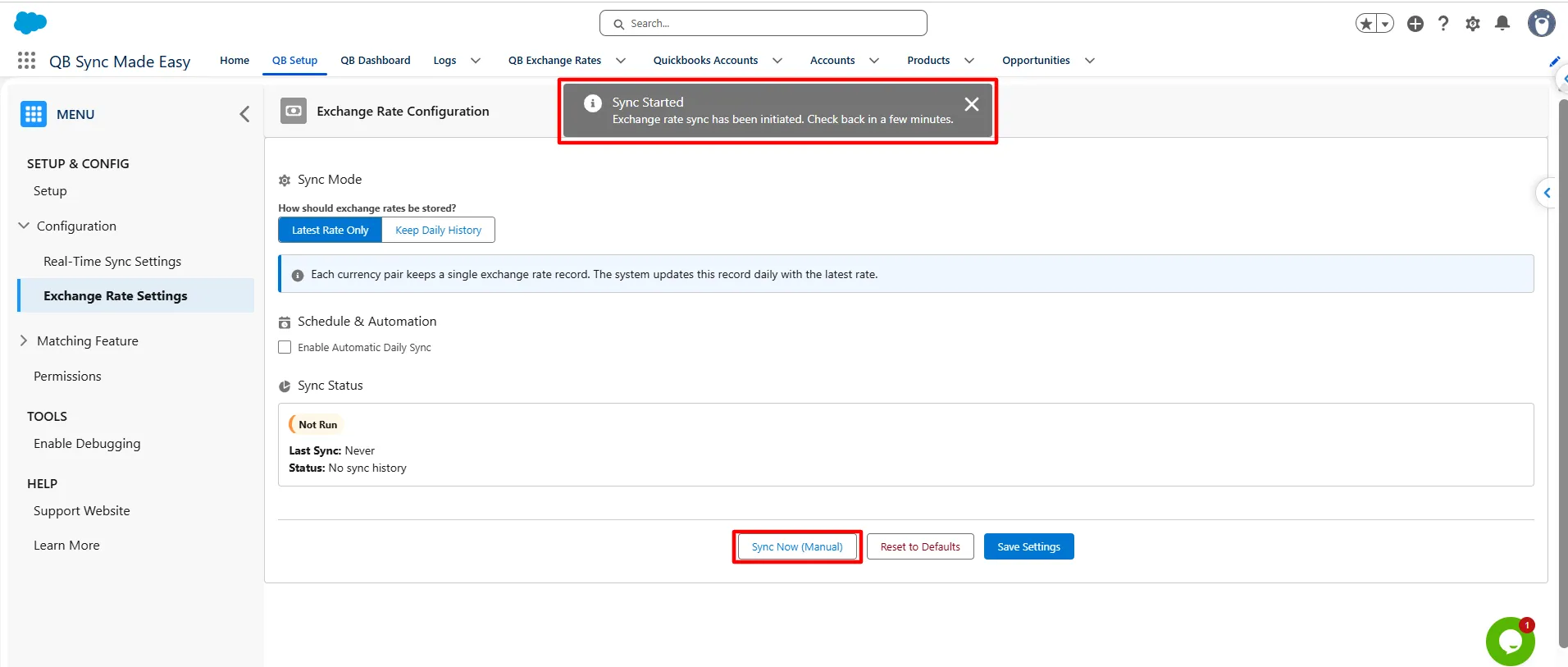
Manual synchronization is particularly useful during initial setup or when exchange-rate information needs to be refreshed without waiting for the next scheduled run.
The retrieved exchange-rate information is stored according to the selected Sync Mode.
Step 5: Monitor the Synchronization Status
The Sync Status section helps users monitor exchange-rate synchronization activity.
It displays information such as the last sync time and the current or most recent synchronization status.
Depending on the synchronization activity, the status may indicate:
- Pending: The synchronization is waiting to be processed or completed.
- Successful: The synchronization has completed successfully.
- Failed: The synchronization encountered an error and may require investigation.
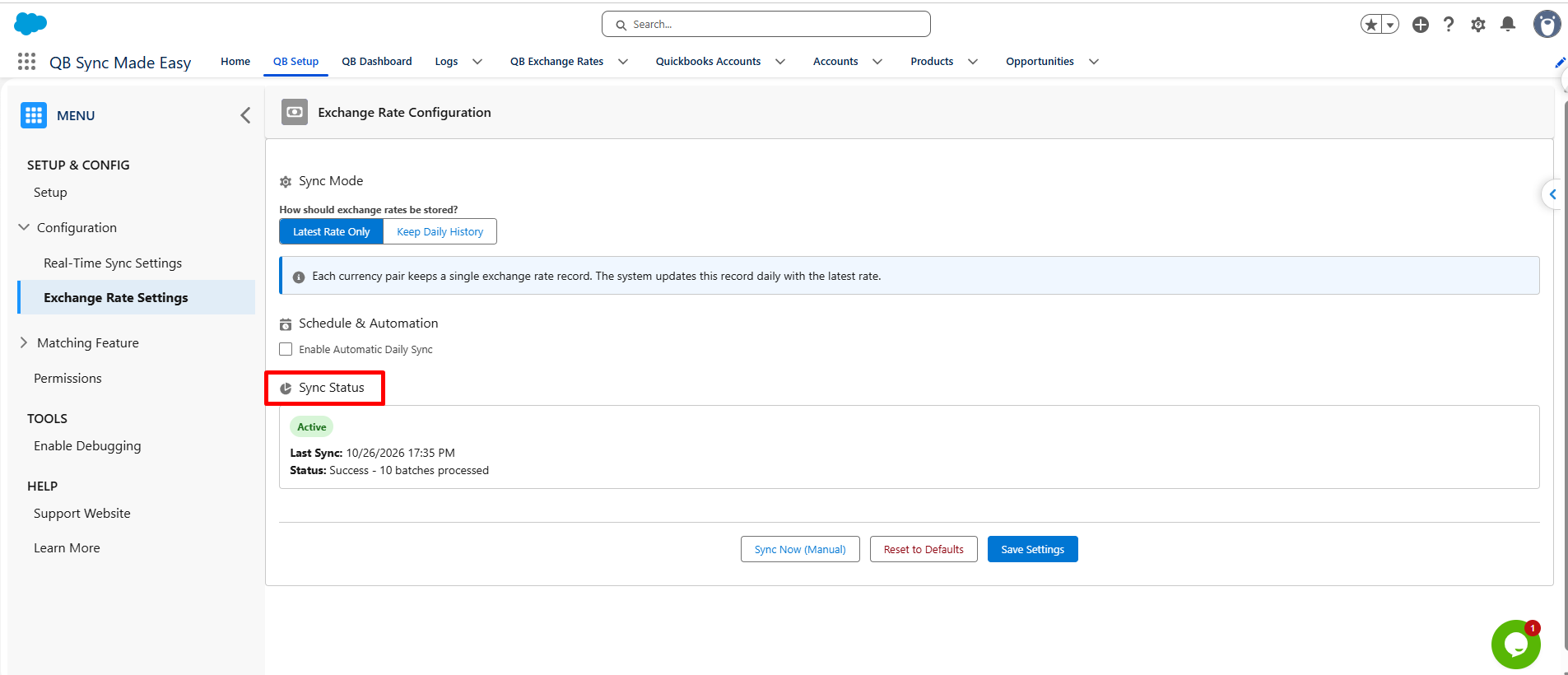
Users can review the displayed status after running a manual or scheduled sync to understand the outcome.
Monitoring this information helps administrators identify unsuccessful synchronization attempts and determine whether further investigation is required.
Step 6: Save the Configuration
After selecting the Sync Mode and configuring the required scheduling options, click Save Settings.
This saves the selected exchange-rate configuration.
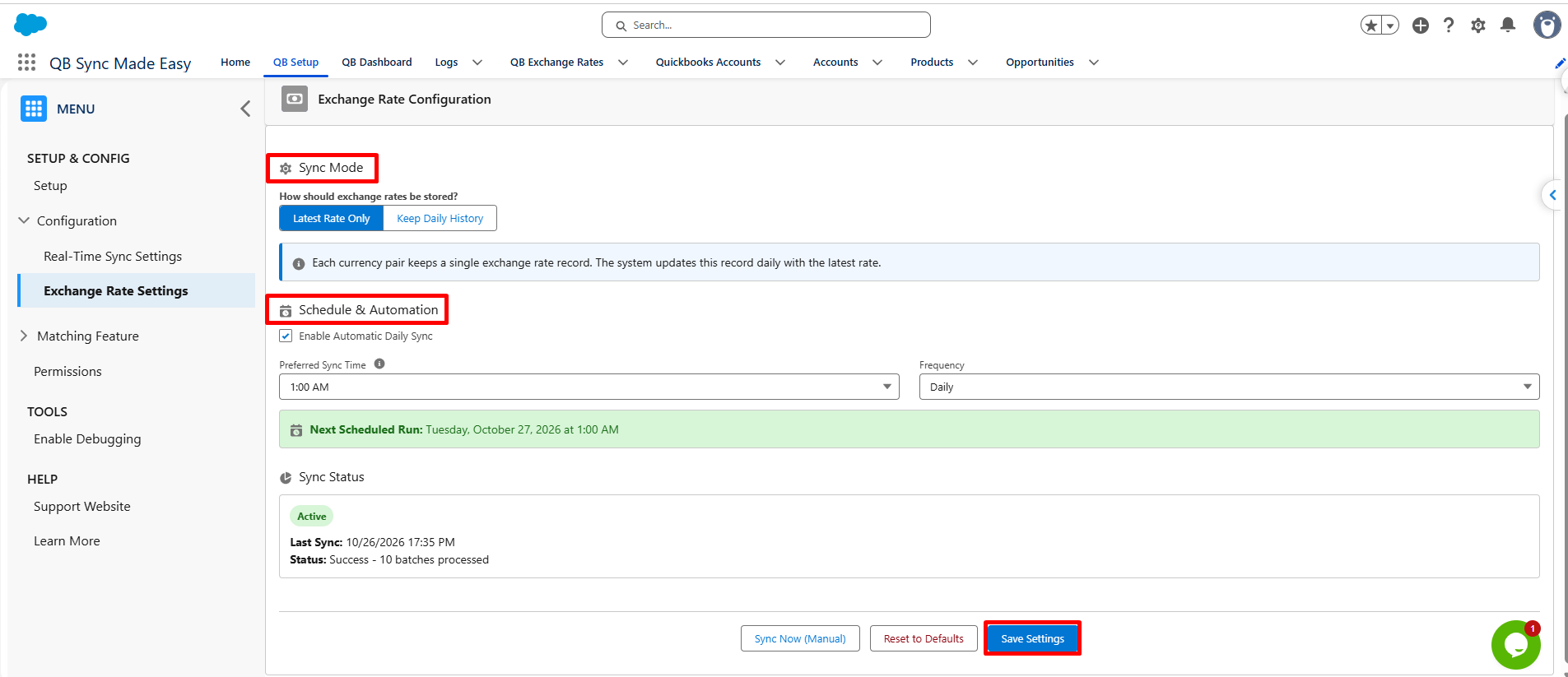
The page also provides a Reset to Defaults option for resetting the configuration to its default settings.
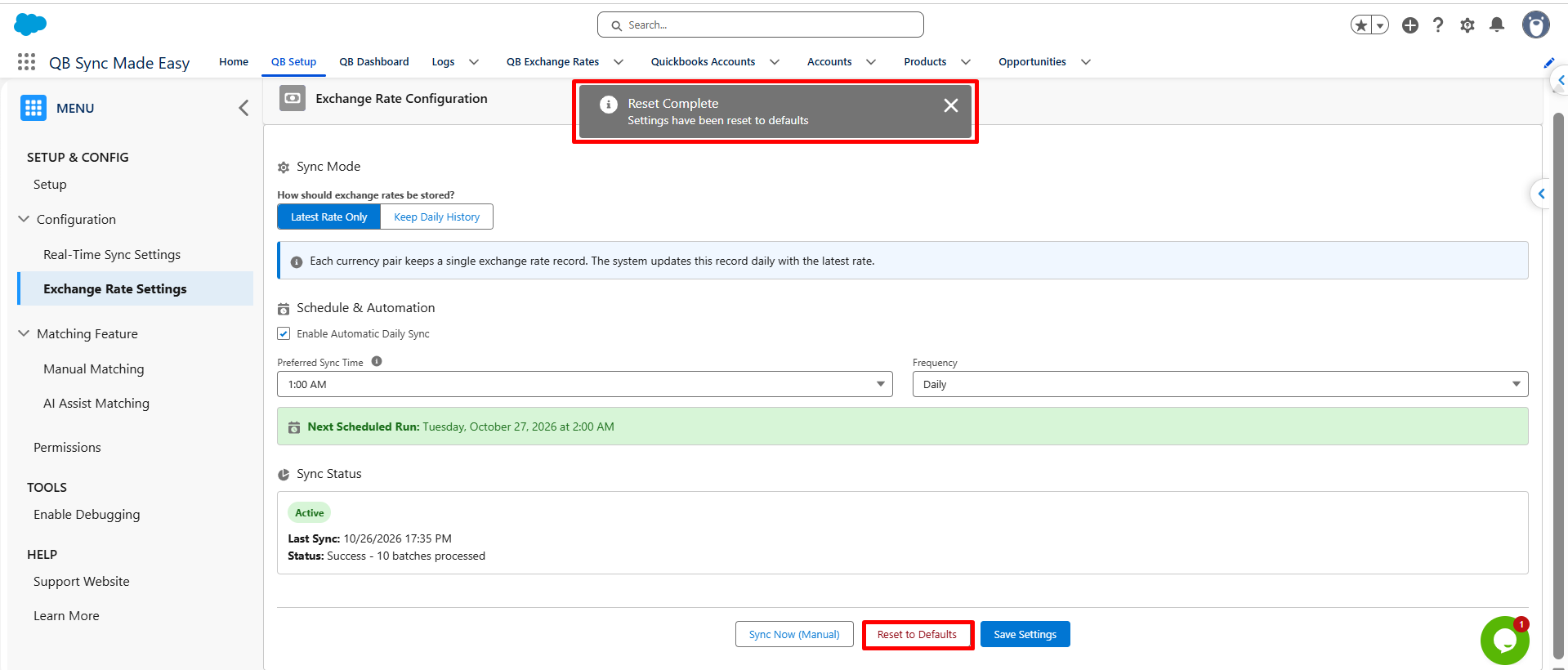
Step 7: Verify Exchange Rate Records in Salesforce
After synchronization completes, open the QB Exchange Rates tab in the QB Sync Made Easy application.
Review the available Exchange Rate records and verify the relevant information, including:
- Exchange Rate record name
- As of Date
- Source currency
- Target currency
- Exchange rate value
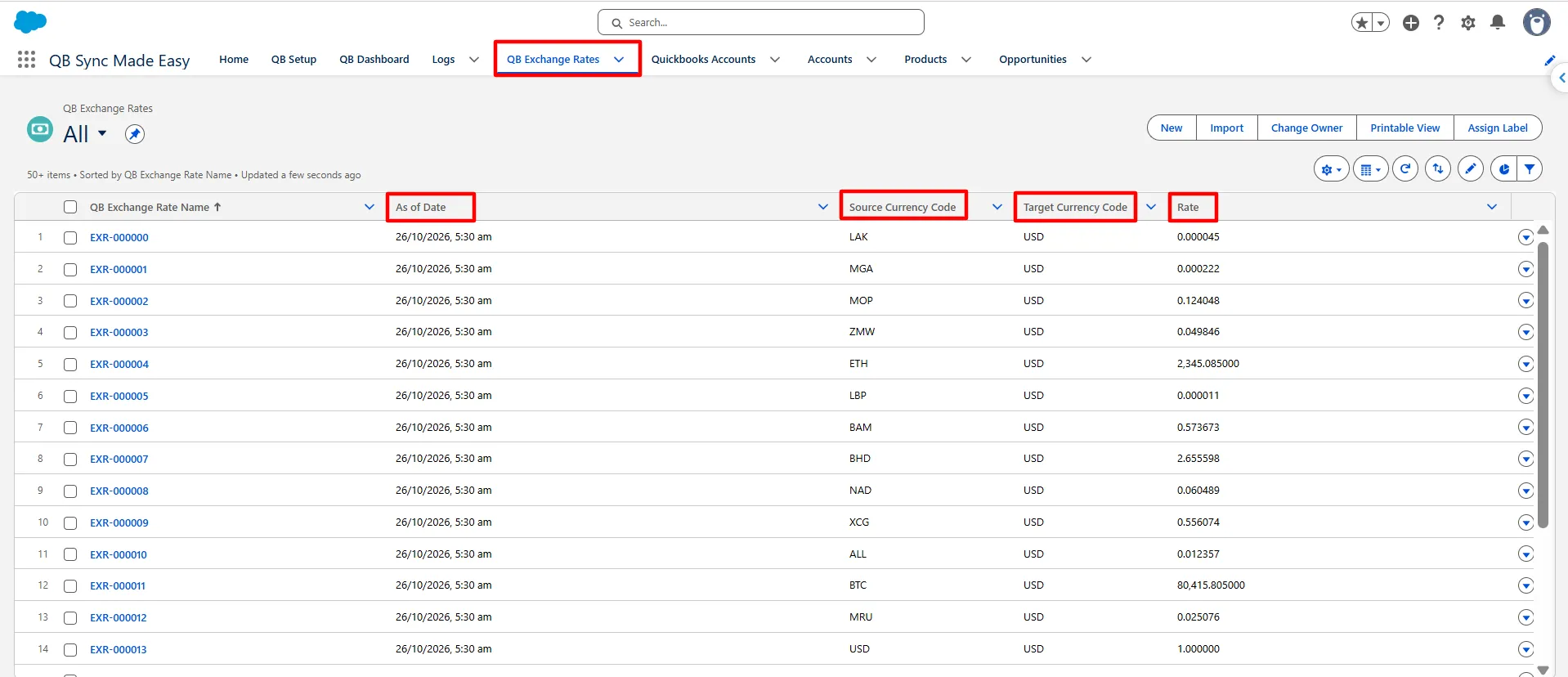
For Latest Rate Only, verify that the existing record for each currency pair reflects the latest synchronized rate.
For Keep Daily History, verify that daily records are maintained as expected.
Once the records are available in Salesforce, administrators can use the exchange-rate information in their own business processes and automation.
Using Exchange Rates in Salesforce
One of the key advantages of this feature is its flexibility.
QB Sync Made Easy makes exchange-rate information available in Salesforce without enforcing a single workflow for every customer. Administrators can decide how to use the synchronized data based on their Salesforce configuration and business requirements.
Salesforce Flow
Administrators can configure Salesforce Flows to retrieve the appropriate Exchange Rate record and populate an exchange-rate field on a relevant business record.
For example:
- A user creates an invoice in Salesforce.
- A Salesforce Flow identifies the invoice’s currency and other relevant information.
- The Flow retrieves the appropriate Exchange Rate record.
- The Flow populates the required exchange-rate field.
- The configured field mapping can send that value to QuickBooks Online during transaction synchronization.
The exact Flow configuration depends on the customer’s data model and requirements.
Lookup Relationships
Organizations can establish lookup relationships between Salesforce business records and Exchange Rate records where appropriate.
For example, an invoice could reference an Exchange Rate record associated with its currency pair and relevant date. This allows the business to access the selected exchange-rate information directly from the related record.
Apex Logic
Salesforce developers can also retrieve Exchange Rate records through Apex and incorporate the values into custom business logic.
This approach may be useful for complex automation, custom exchange-rate selection, or integrations with existing Salesforce processes.
Field Mapping
After the required exchange rate has been populated on a Salesforce record, administrators can configure the corresponding field mapping in QB Sync Made Easy, where supported.
This allows the exchange-rate value to be included in transaction synchronization according to the configured mapping.
Important: Exchange Rate Synchronization retrieves and stores exchange-rate information in Salesforce. Applying a particular rate to an invoice or another transaction requires the appropriate Salesforce automation, relationships, and field mappings.
Conclusion
Managing exchange rates across Salesforce and QuickBooks Online becomes easier when businesses can retrieve and maintain the required information in one place. QB Sync Made Easy supports multi-currency management with options to store the latest rates or retain daily historical records.
With QuickBooks Exchange Rate Sync and QuickBooks to Salesforce integration, businesses can make exchange-rate information available for their Salesforce workflows while reducing manual maintenance. The right automation and field mapping can further help teams apply this information to their financial processes.