
The blog discusses the importance of synchronizing QuickBooks and Salesforce to ensure that updates to customer information are reflected across both platforms. It introduces the Update Flow Template in QB Sync Made Easy, which automates this process through Salesforce Flows. The blog provides a step-by-step guide on configuring the Update Flow Template, including prerequisites like installing the QB Sync Made Easy package and mapping required fields. Once activated, the flow automatically updates QuickBooks records when corresponding Salesforce records are modified, streamlining data management and reducing manual effort.
Keeping QuickBooks and Salesforce synchronized becomes important when customer or business information changes after the initial record creation. Without automation, teams may need to update the same information manually in both platforms.
With QB Sync Made Easy, Salesforce QuickBooks integration can handle these changes through automated Salesforce Flows. The Update Flow Template helps ensure that updates made to existing Salesforce records are reflected in the corresponding QuickBooks records.
In this blog, we will walk through how to configure the Update Flow Template, set up the required flow actions, and automate the process to update QuickBooks records from Salesforce whenever an existing record changes.
Prerequisites
Before configuring the flow, ensure that:
Before configuring the flow, ensure that:
✅ The QB Sync Made Easy package is installed.
✅ Your QuickBooks company is connected to Salesforce.
✅ The required Salesforce and QuickBooks object mapping is completed.
✅ The required fields between the Salesforce and QuickBooks objects are mapped.
✅ You have the necessary permissions to create and activate Salesforce Flows.
For setup instructions, refer to our guide on connecting and configuring QuickBooks companies with Salesforce using QB Sync Made Easy
Objective
The Update Flow Template allows you to automatically update an existing QuickBooks record whenever its corresponding Salesforce record is modified.
For example, if a user updates an existing Account in Salesforce, the flow triggers automatically and updates the mapped Customer record in QuickBooks.
Salesforce Account Updated → Update Flow Triggered → Corresponding QuickBooks Customer Updated
You can configure the same template for other supported Salesforce and QuickBooks objects based on your business requirements.
Need to Create New Records Instead?
If you want to automatically create new QuickBooks records when Salesforce records are created, refer to our guide: How to Automate Salesforce QuickBooks Integration Using the Create Flow Template.
How to Configure the Update Flow Template
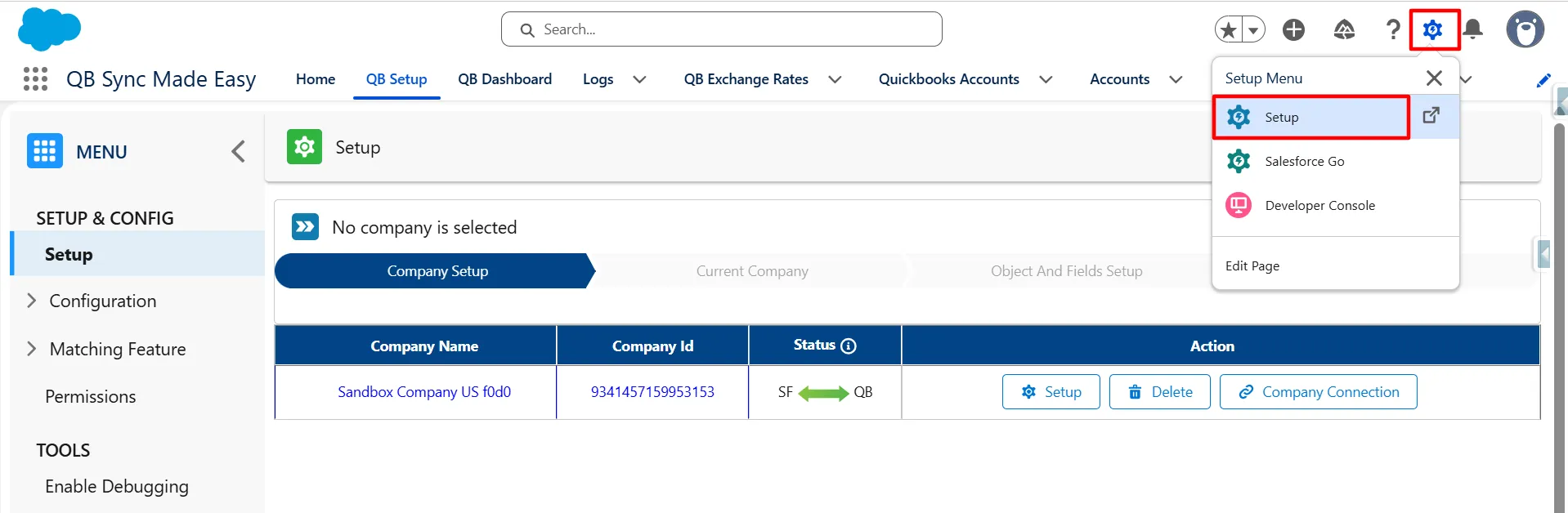
Step 1: Navigate to Flow Setup
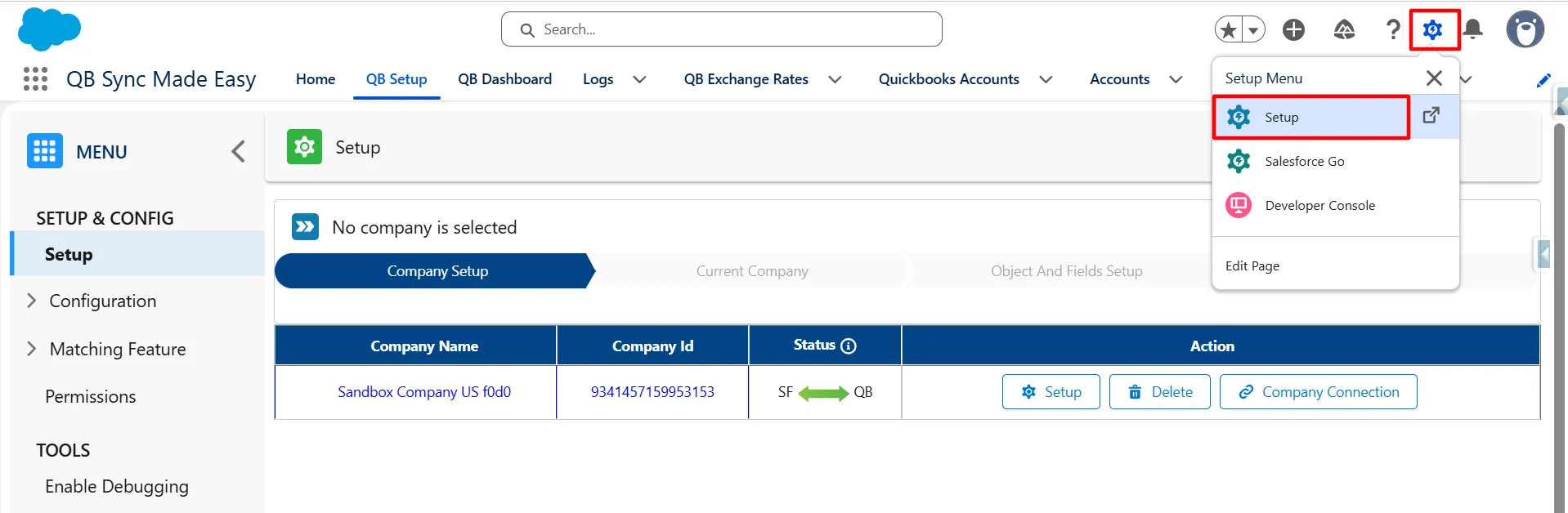
- Click the Gear icon (⚙️) in Salesforce.
- Select Setup.
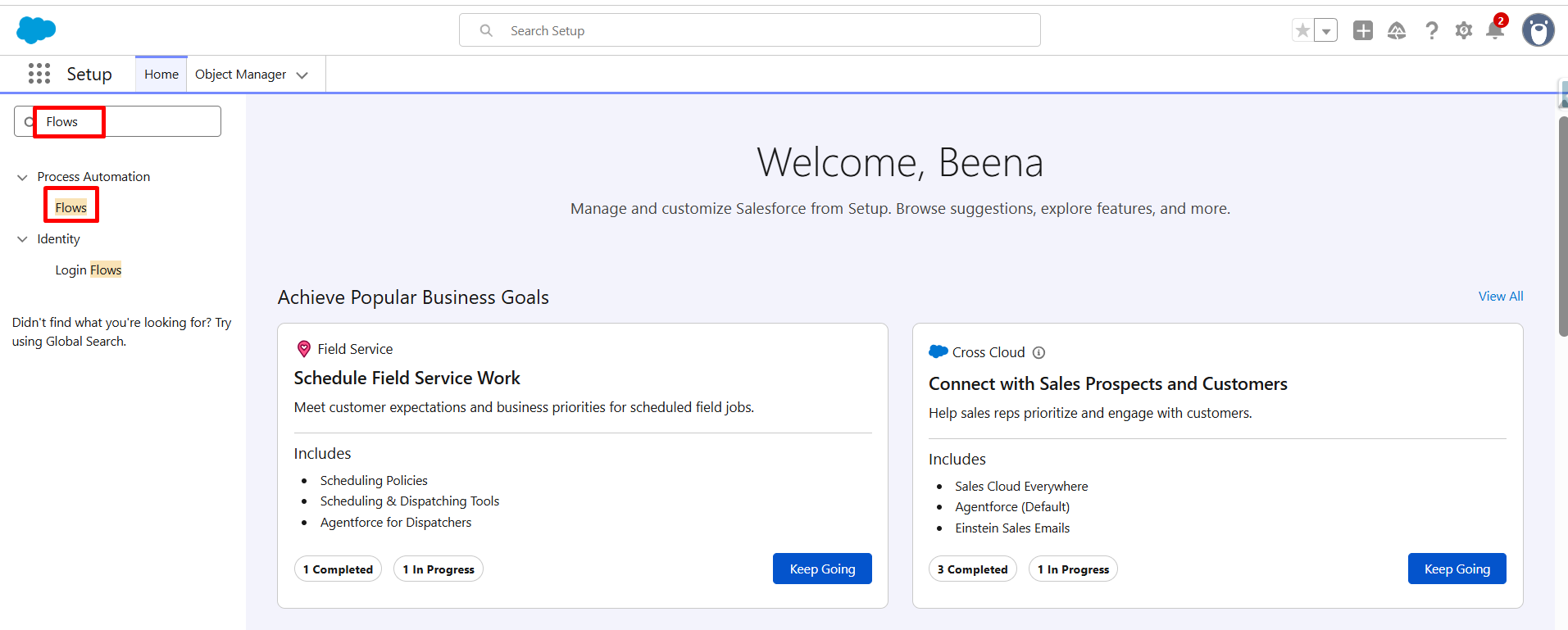
- In the Quick Find box, search for Flows.
- Click Flows.
Step 2: Open the Update Flow Template
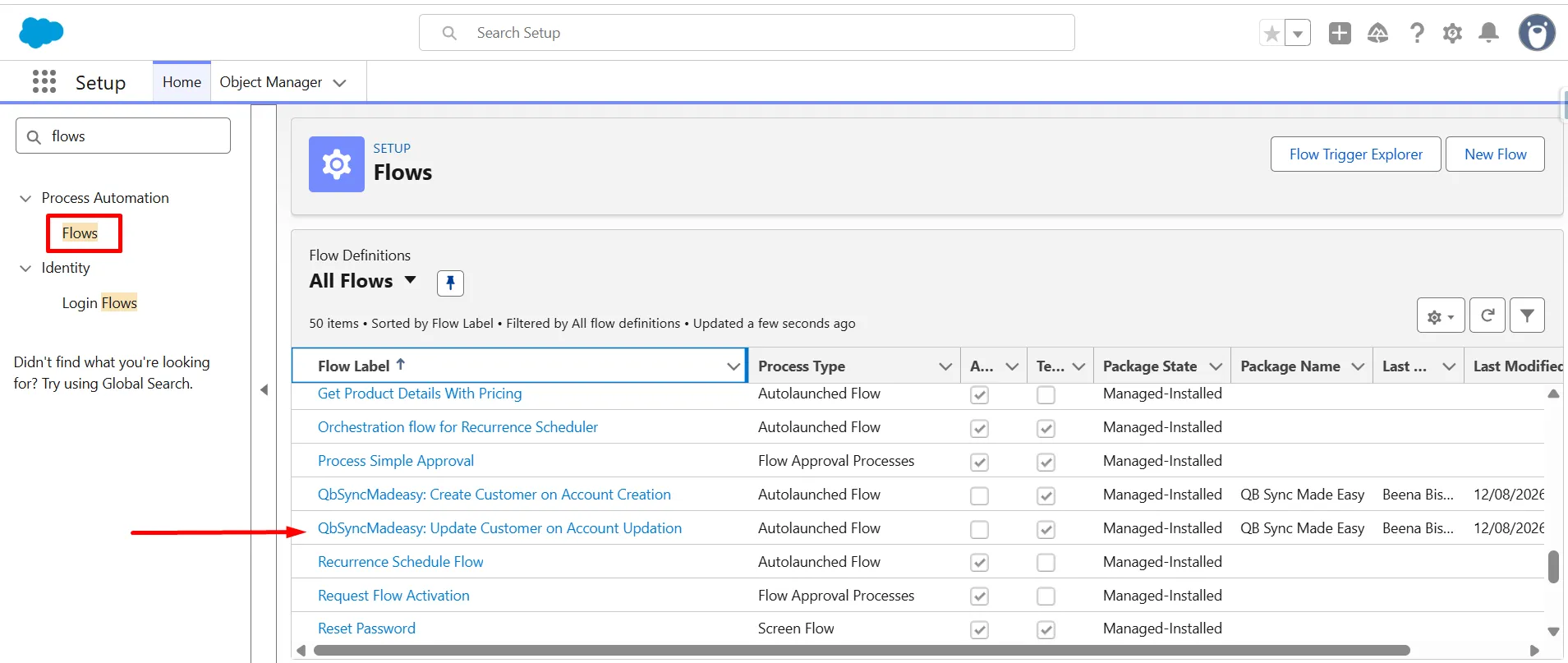
- Locate the QB Sync Made Easy Update Flow Template.
- Select the Update Flow Template and open it.
- This template is designed for scenarios where synchronization should occur when an existing Salesforce record is updated.
Step 3: Configure the Flow Trigger
- Configure the Start element according to the Salesforce object that you want to synchronize.
For example, if you want to update a QuickBooks Customer when a Salesforce Account is updated:
- Salesforce Object: Account
- Trigger: A record is updated
The flow will automatically execute when an existing Account is updated.
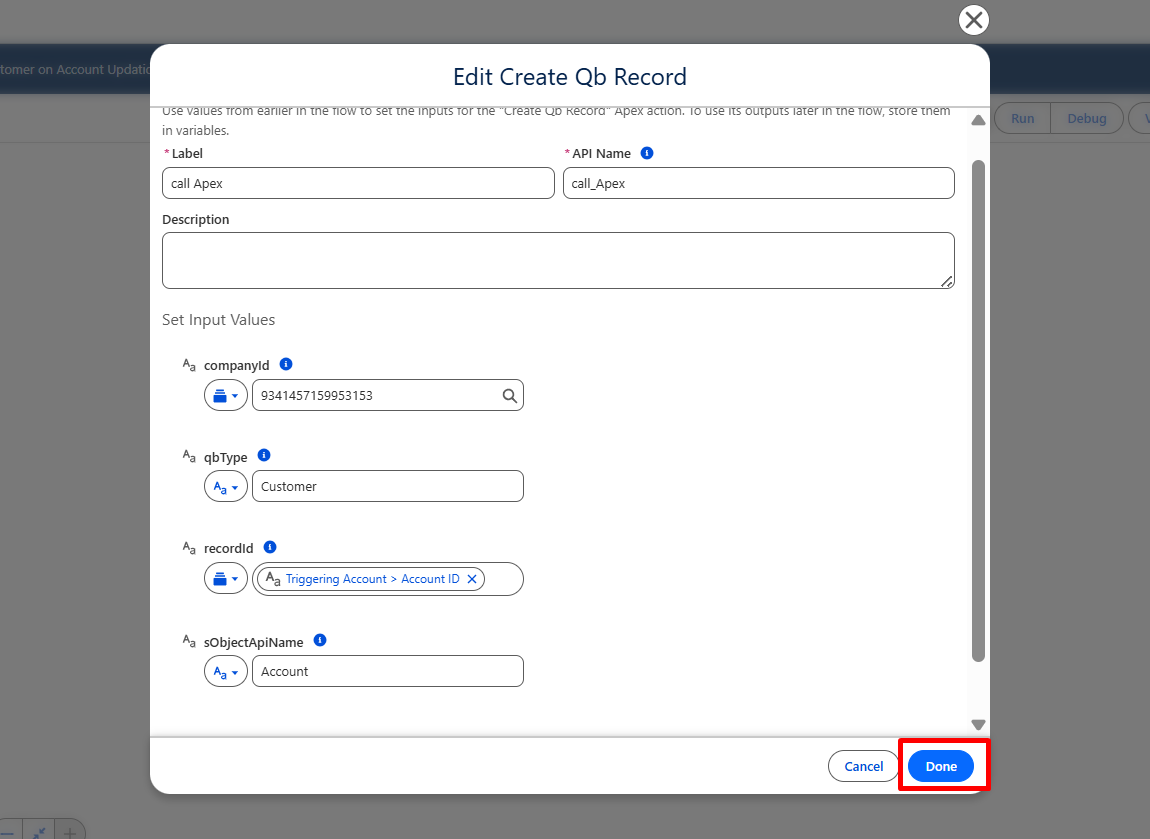
Step 4: Configure the “Choose QB Record” Flow Action
- Inside the flow, locate the Choose QB Record flow action.
- This action is used to define the QuickBooks company and object involved in the synchronization.
The following four values need to be configured.
1. Company ID
Enter the QuickBooks Company ID of the connected company where the record should be synchronized.
Example:
Company ID: 9341457159953153
2. QB Object API Name
Enter the API name of the QuickBooks object that corresponds to the Salesforce record.
For example:
Customer
The QuickBooks object should be the object that you want to update when the Salesforce record changes.
3. Triggering Point
Select the triggering point based on when the synchronization should occur.
For the Update Flow Template, configure the triggering point for the Update event.
Example:
Triggering Point: Updated
This ensures that the synchronization is initiated when the Salesforce record is updated.
4. Salesforce Object API Name
Enter the API name of the Salesforce object used in the flow.
For example:
Account
For a custom Salesforce object, enter the appropriate API name, such as:
Invoice__c
Make sure this value matches the Salesforce object configured in the flow trigger.
Step 5: Save and Activate the Flow
After completing the configuration:
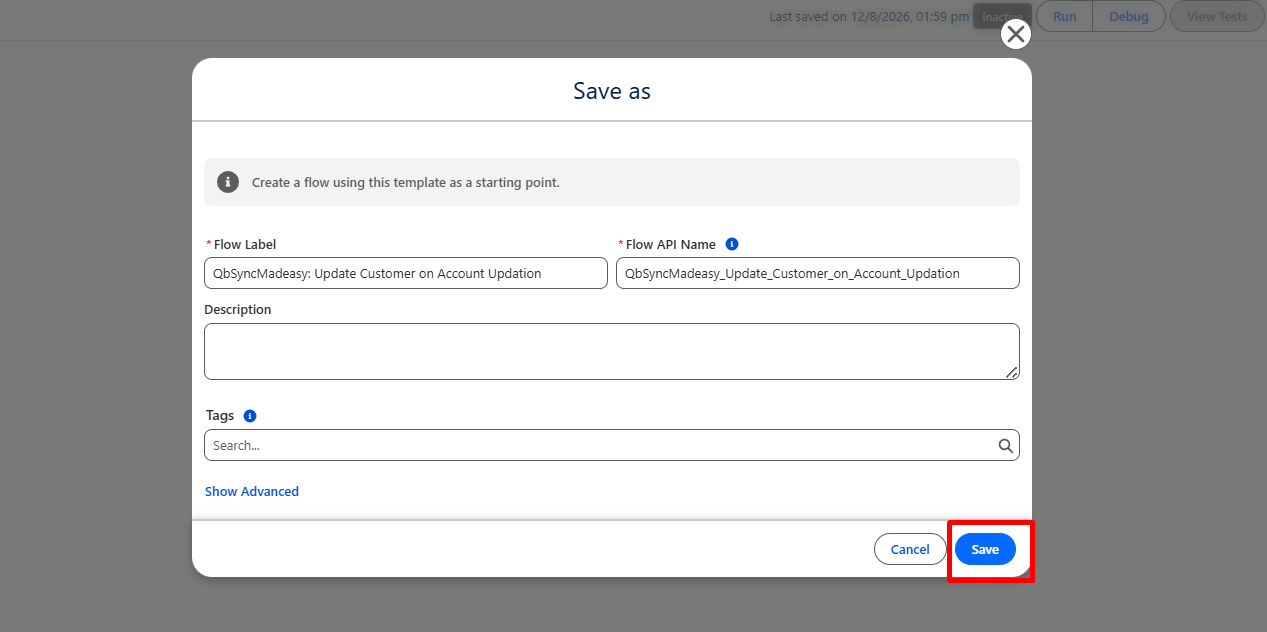
- Click Save As New Flow.
- Enter the required Flow Label Name and Save.
- Click Activate.
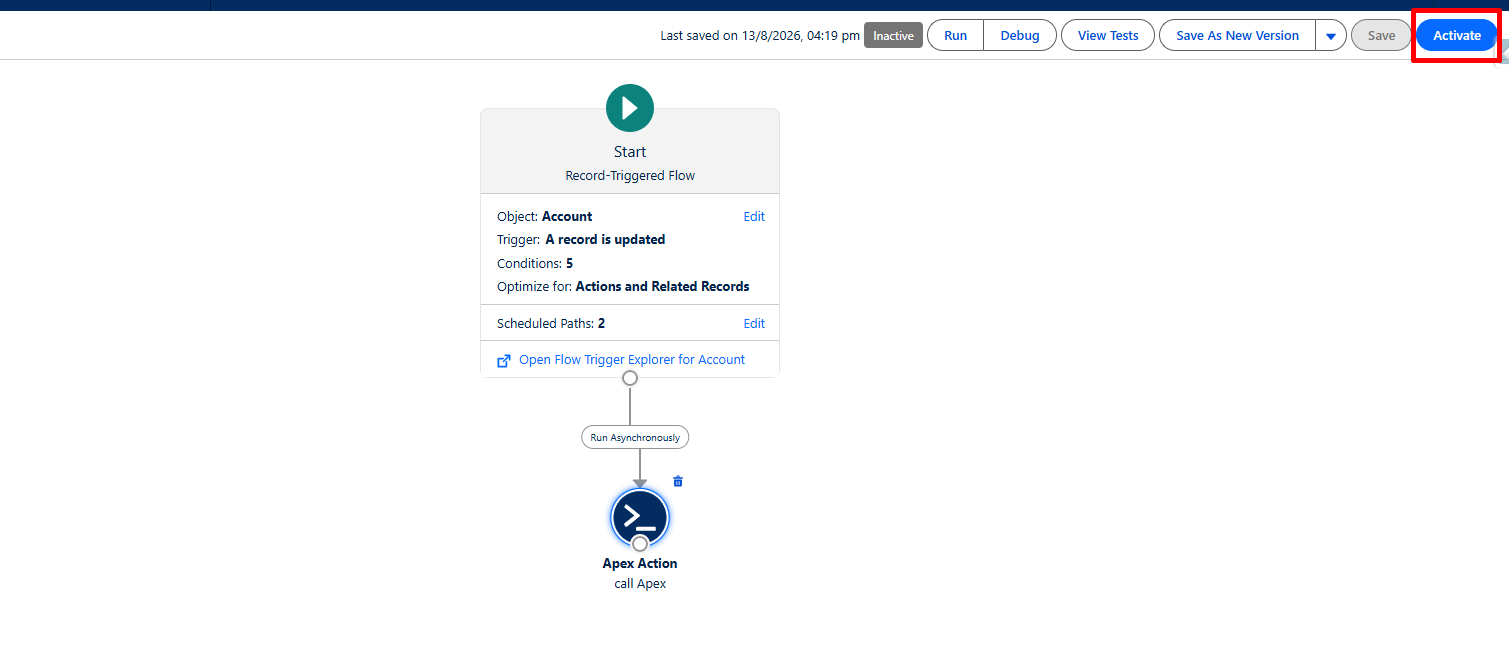
⚠️ Important: The flow must be activated for the automation to work.
What Happens After Activation?
Once the flow is activated:
- An existing Salesforce record is updated.
- The Update Flow is automatically triggered.
- The Choose QB Record action identifies the configured QuickBooks company and object.
- The updated record is processed for synchronization.
- The corresponding QuickBooks record is updated based on the configured mapping.
For example:
Salesforce Account Updated
↓
Update Flow Triggered
↓
Choose QB Record
↓
QuickBooks Customer Updated
[Add Screenshot – Salesforce Record Update]
[Add Screenshot – QuickBooks Updated Record]
Example Use Case
Suppose your business already has Salesforce Accounts synchronized with QuickBooks Customers.
A user changes the Phone Number, Billing Address, or another mapped field on an existing Salesforce Account.
Configure the flow as follows:
- Company ID: Your connected QuickBooks Company ID
- QB Object API Name: Customer
- Triggering Point: Updated
- Salesforce Object API Name: Account
When the Account is updated, the flow automatically initiates synchronization with the corresponding QuickBooks Customer.
Create Flow vs. Update Flow
Choose the appropriate template based on when you want the synchronization to occur.
| Requirement | Template | Triggering Point |
|---|---|---|
| Synchronize when a new Salesforce record is created | Create Flow Template | Created |
| Synchronize when an existing Salesforce record is updated | Update Flow Template | Updated |
Create Flow
Salesforce Record Created → Create Flow → QuickBooks Synchronization
Update Flow
Salesforce Record Updated → Update Flow → QuickBooks Synchronization
Benefits of Using the Update Flow Template
- Automatically synchronizes changes made to Salesforce records.
- Reduces the need for manual synchronization.
- Helps keep Salesforce and QuickBooks data aligned.
- Provides a reusable flow structure.
- Allows users to configure synchronization according to their business requirements.
Conclusion
The Update Flow Template in QB Sync Made Easy simplifies the process of synchronizing changes between both platforms. By configuring the required details under the Choose QB Record action, businesses can automate updates without relying on repetitive manual work. This makes QuickBooks Salesforce integration easier to manage.
Once the flow is saved and activated, changes to existing Salesforce records can automatically trigger the corresponding QuickBooks updates. Thus, this integration helps maintain consistent business information, reduce manual effort, and keep everyday workflows running smoothly.