Managing user access in Salesforce is essential for maintaining security and ensuring smooth operations. If you’re using QB Sync Made Easy, assigning the right Permission Set in Salesforce allows users to access the right features without risking data integrity.
In this step-by-step guide, you’ll learn how to assign the QB Sync Made Easy Permission Set in Salesforce, along with best practices for access control.
Why Assign the Right Permission Set?
Permission sets in Salesforce define what users can view, edit, and manage. Assigning the correct permission set ensures:
- Proper access to QuickBooks sync features
- Improved data security and governance
- Better user experience based on roles
- Reduced risk of unauthorized changes
For QB Sync Made Easy, the commonly used permission sets include:
- QB Made Easy Admin Permission Set – Full access for administrators
- QB Made Easy Business Permission Set – Standard operational access
- QB Made Easy Read-Only Permission Set – View-only access
Step-by-Step: Assign QB Sync Made Easy Permission Set
Follow these simple steps to assign a permission set to a user:
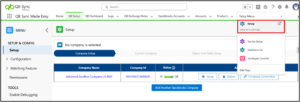
Step 1: Go to Setup
Click on the Gear icon in the top-right corner and select Setup.
Step 2: Navigate to Users
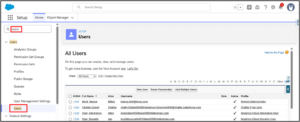
In the Quick Find search bar, type Users, then click on Users from the results.
Step 3: Select the User
Click on the Full Name of the user you want to assign the permission set to.
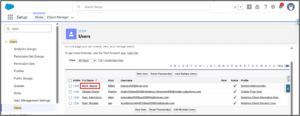
Step 4: Open Permission Set Assignments
Scroll down to the Permission Set Assignments section and click Edit Assignments.
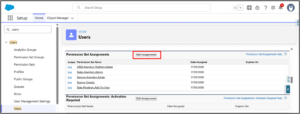
Step 5: Choose the Appropriate Permission Set
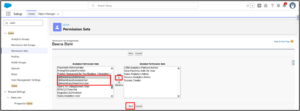
From the available list, select the permission set that matches the user’s role:
- QB Made Easy Admin Permission Set
- QB Made Easy Business Permission Set
- QB Made Easy Read-Only Permission Set
Now, click Add, then Save to apply the changes.
Best Practices for Permission Set Assignment
When assigning permission sets in Salesforce, it’s important to follow security and access management best practices to maintain system integrity and avoid unnecessary access risks.
Always follow the principle of least privilege access by giving users only the permissions they actually need to perform their tasks. Regularly reviewing and updating permission sets helps ensure access stays aligned with changing user roles and responsibilities.
Businesses should also use role-based access control (RBAC) to maintain consistency across teams and simplify user management. Additionally, avoid assigning multiple overlapping permission sets unless necessary, as this can create confusion, increase security risks, and make troubleshooting more difficult.
Conclusion
Assigning the correct QB Sync Made Easy Permission Set in Salesforce is a small but critical step. It ensures users can work efficiently while maintaining strong security and governance across your system.
By following this guide, you can confidently manage user access and keep your QuickBooks Salesforce integration running smoothly.