Troubleshooting Guide: What to Do When Your QuickBooks-Salesforce Sync Fails
When your QuickBooks-Salesforce sync is working, financial and operational data flows seamlessly between sales and accounting. Invoices appear on time, customer records stay aligned, and teams operate with confidence. But when the sync fails, even briefly, it can disrupt billing cycles, reporting accuracy, and internal trust in the system.
QuickBooks-Salesforce sync failures are more common than most teams expect and they’re rarely random. They usually point to configuration gaps, data mismatches, or overlooked platform limitations.
This troubleshooting guide explains why QuickBooks sync issues happen, how to diagnose them step by step, and how to prevent repeat failures with a more resilient sync strategy.
Understanding How QuickBooks-Salesforce Sync Works
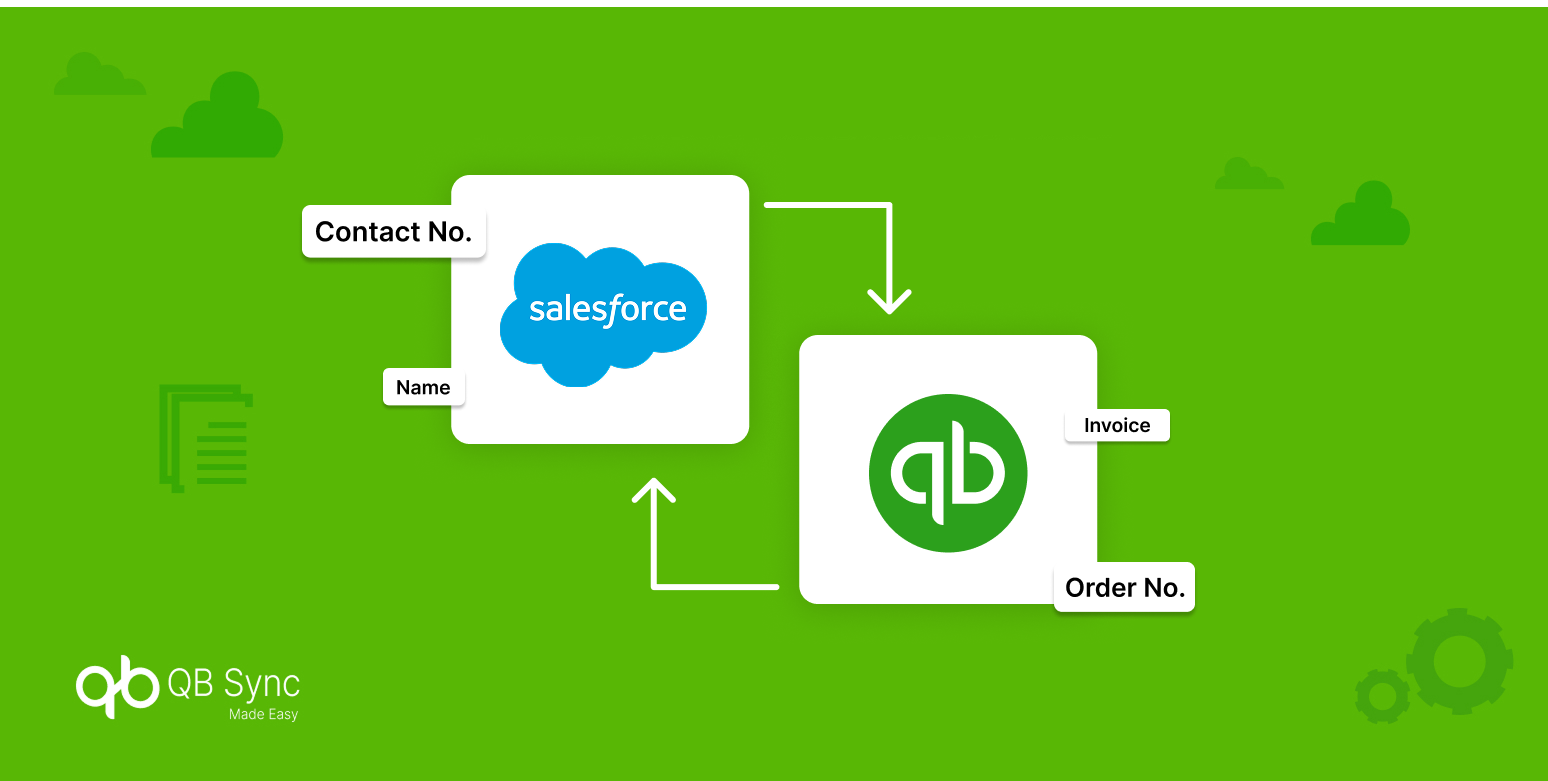
Before troubleshooting, it’s important to understand how QuickBooks sync actually operates. Salesforce and QuickBooks are built for different purposes. Salesforce manages relationships, workflows, and automation, while QuickBooks enforces accounting rules and financial compliance. Sync tools act as intermediaries, translating data between two fundamentally different systems.
Because of this, sync failures usually occur at the integration layer, not inside Salesforce or QuickBooks themselves. Recognizing this helps teams focus on the right root causes instead of chasing surface-level symptoms.
Common Signs Your QuickBooks-Salesforce Sync Is Failing
Most sync issues don’t announce themselves loudly. Instead, they show subtle warning signs. You may notice invoices missing in Salesforce, customers duplicated in QuickBooks, pricing mismatches, or delayed updates. In some cases, syncs partially succeed, making the issue harder to detect until reports don’t add up.
Recognizing these early indicators allows teams to act before data inconsistencies compound across systems.
Let’s check out the steps:
Step 1: Check Connection and Authentication Issues First
The most common reason a QuickBooks-Salesforce sync fails is expired or broken authentication.
QuickBooks uses OAuth-based authentication, which can expire due to password changes, revoked permissions, or security updates. When this happens, sync jobs may silently stop running.
Always start troubleshooting by verifying that the QuickBooks company connection is active and authorized. Re-authenticating early often resolves sync issues without further investigation.
Step 2: Review Sync Logs to Identify the Failure Point
Once authentication is confirmed, the next step is reviewing sync logs. Logs reveal whether the failure occurred during data fetch, field validation, record creation, or update attempts. Many QuickBooks sync errors are not global failures but record-specific issues that stop the process mid-run.
Understanding where the sync failed provides direction, whether the issue is data-related, structural, or permission-based.
Step 3: Validate Data Mapping Between Salesforce and QuickBooks
Data mapping issues are one of the most overlooked causes of sync failure. Salesforce fields do not always align cleanly with QuickBooks fields. Currency formats, required fields, picklist values, and tax settings must match expected structures. If a required QuickBooks field receives invalid or missing data, the sync will fail.
Revisiting Salesforce-QuickBooks data mapping ensures that both systems speak the same data language.
Step 4: Watch for QuickBooks API Rate Limits and Throttling
QuickBooks enforces strict API rate limits, especially during high-volume syncs. When too many records are pushed at once, such as during historical data syncs QuickBooks may throttle requests or return temporary errors. These failures can appear random unless rate limits are accounted for.
Throttling-aware sync configurations, batching strategies, and retry logic are essential to maintaining a stable QuickBooks-Salesforce sync.
Step 5: Check for Duplicate Records and Source-of-Truth Conflicts
Duplicate customers, vendors, or products can break sync logic. If Salesforce and QuickBooks are both allowed to create records independently, the integration may struggle to determine which record is authoritative. This often results in failed updates, mismatched IDs, or skipped records.
Defining a clear source of truth for each object significantly reduces sync conflicts and improves long-term reliability.
Step 6: Identify Field-Level Validation Errors
Some sync failures occur even when mappings are correct. QuickBooks enforces accounting rules that Salesforce does not. For example, missing tax codes, inactive items, or unsupported custom fields can cause record-level failures.
These errors usually surface in logs but are easy to miss without systematic review. Field-level validation checks prevent repeated failures caused by the same data patterns.
Step 7: Troubleshoot Historical Data Sync Separately
Historical sync failures require a different approach than live sync issues. Older records may contain legacy formats, deleted references, or outdated pricing rules. Syncing them without validation often results in cascading errors.
The best practice is to sync historical data in controlled batches, validate results after each run, and exclude fully reconciled transactions when possible.
Step 8: Use Automation and Alerts to Catch Failures Early
One of the biggest issues with QuickBooks sync failures is delayed detection. Without alerts, teams may not realize the sync has stopped until financial discrepancies appear.
Automated monitoring and notifications ensure issues are flagged immediately when they occur. Real-time alerts turn sync failures from silent risks into manageable events.
How QB Sync Made Easy Helps Prevent Sync Failures
Many sync failures stem from rigid configurations and limited visibility. QB Sync Made Easy is designed to reduce these risks by offering controlled field mapping, structured sync rules, and real-time monitoring within Salesforce. It helps teams manage authentication, handle API limits intelligently, and track sync status without manual oversight.
By simplifying troubleshooting and prevention, it allows teams to focus on operations instead of constantly fixing sync breaks.
Preventing Future QuickBooks-Salesforce Sync Issues
Troubleshooting is only half the solution. Long-term stability comes from proactive design.
Regular sync audits, controlled data ownership rules, limited bi-directional sync, and monitored API usage create integrations that scale safely as data volumes grow.
The goal isn’t to eliminate failures entirely; it’s to detect, isolate, and resolve them before they impact the business.
Conclusion
A failing QuickBooks-Salesforce sync isn’t just a technical inconvenience; it’s a signal that data governance, mapping, or monitoring needs attention. By understanding how syncs work, identifying failure patterns early, and using the right tools to monitor and control data flow, teams can build integrations that remain stable under growth and change.
With a structured approach, sync failures become manageable exceptions, not recurring disruptions. For teams looking to avoid recurring sync failures altogether, choosing a purpose-built integration makes a measurable difference.
QB Sync Made Easy helps businesses manage QuickBooks-Salesforce syncs with structured data mapping, intelligent error handling, and real-time visibility; all without complex development effort. With the right integration in place, syncing becomes a reliable process rather than a recurring troubleshooting task.