Logo

How to Create a QuickBooks Sandbox Company
How to Create a QuickBooks Sandbox Company
January 2, 2026
By Team QB Sync Made Easy
Share This Blog On

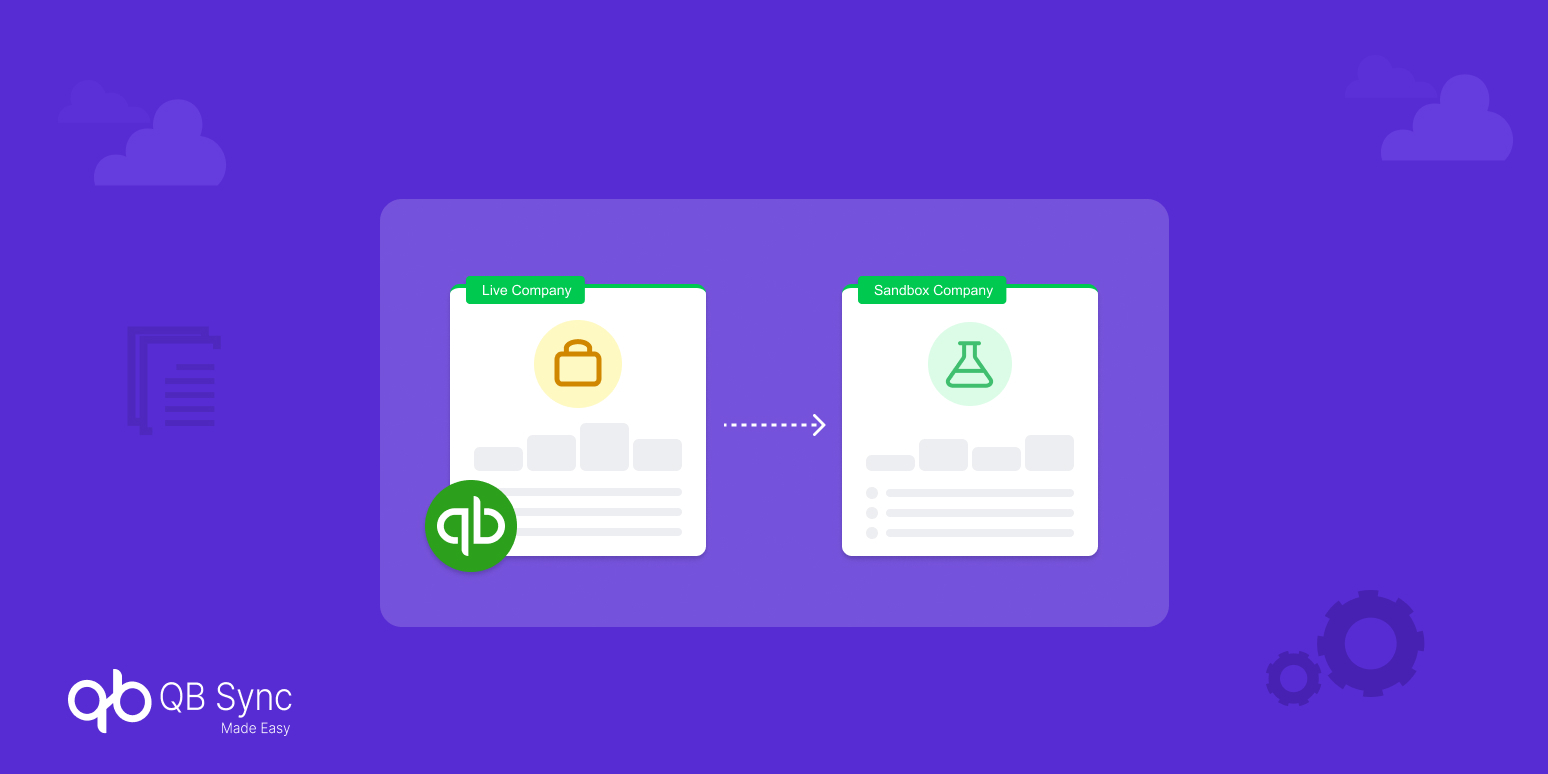
A QuickBooks Sandbox company is created for testing purposes. It provides a safe environment to explore and test the features and functionality of your integrations – such as the QB Sync Made Easy app without affecting your live QuickBooks data.

By using a sandbox, you can ensure that the Salesforce QuickBooks integration app – QB Sync Made Easy, works correctly and integrates seamlessly with your QuickBooks account before moving to a production environment. 

Therefore, in this guide, we will explore the steps of creating a QuickBooks Sandbox account to streamline your workflow.

Steps to Create a QuickBooks Sandbox Account

Follow the steps below to create your own QuickBooks Sandbox company:

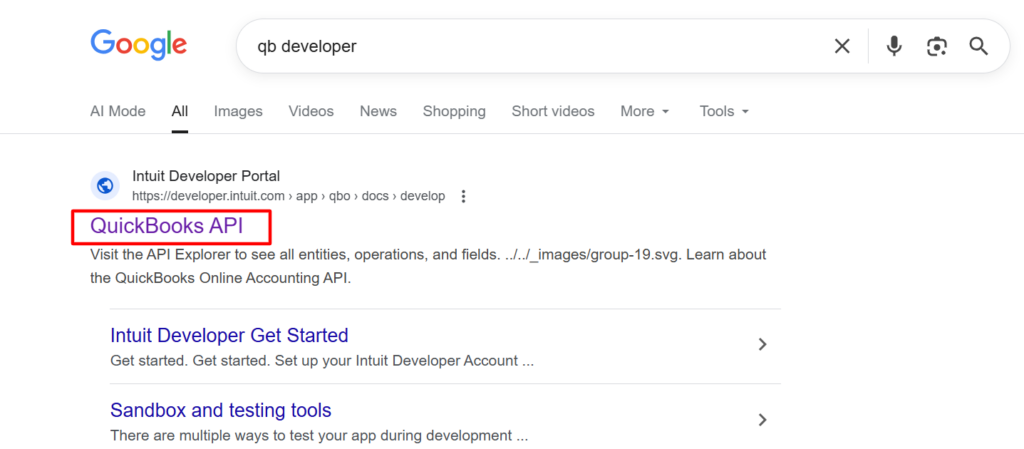
Step 1: Open the QuickBooks Intuit Developer Portal.

Go to the official QuickBooks Developer Portal in your browser.

Quickbooks integration

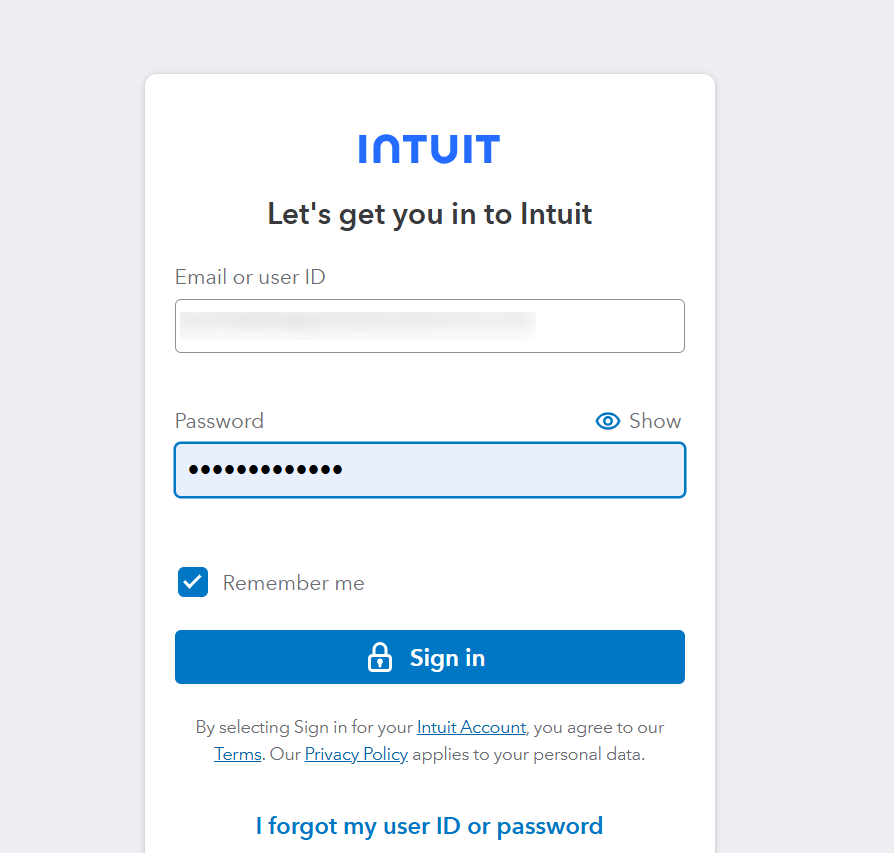
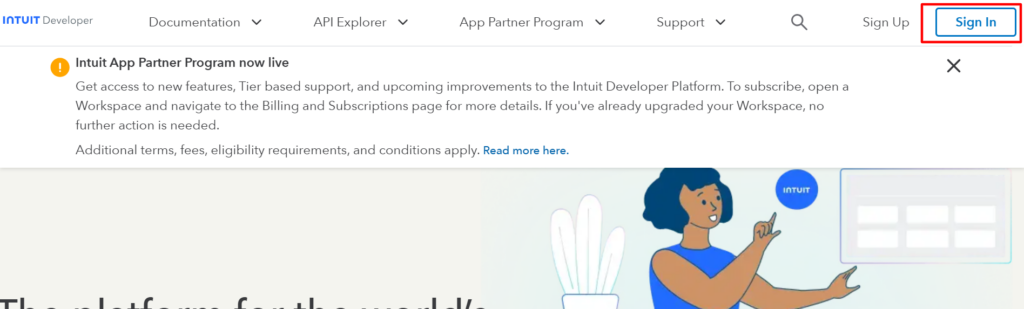
Step 2: Sign In or Create an Account.

  • If you already have an account, click on Sign In.

  • If not, click on Create an Account and complete the registration form with accurate details.
QUickbooks Salesforce integration

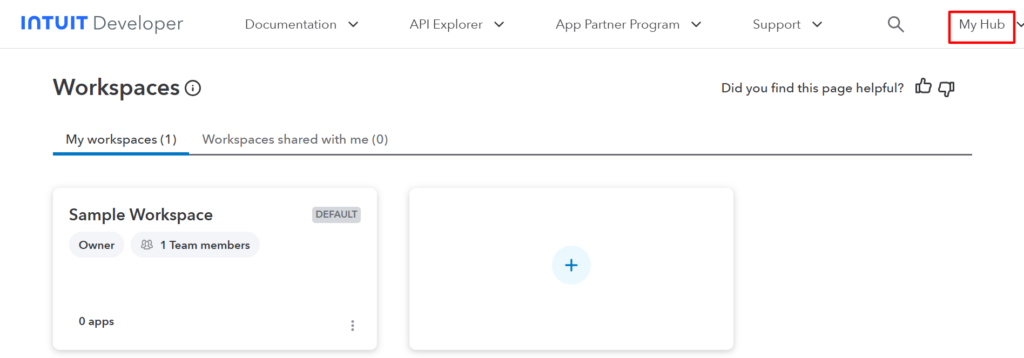
Step 3: Access Your Developer Dashboard.

Once signed in, click on the My Hub button.

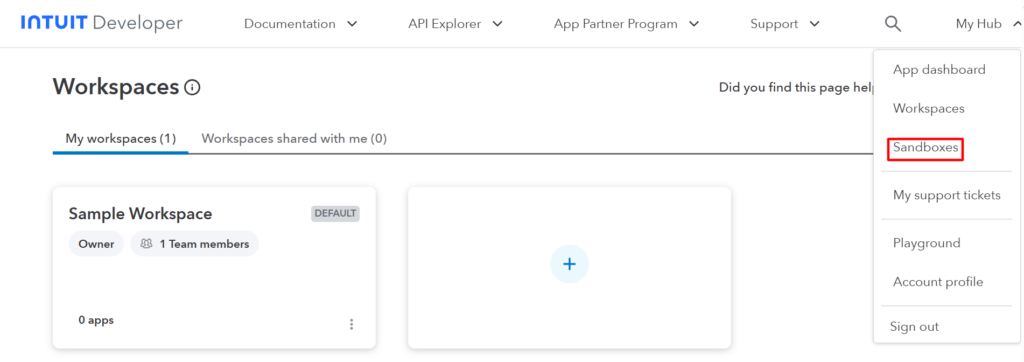
Step 4: Navigate to Sandboxes.

From the menu, select Sandboxes and click on it.

Quickbooks Integration

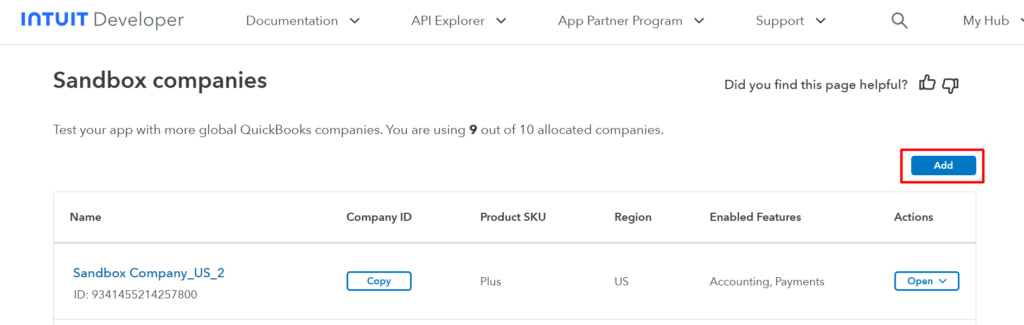
Step 5: Add a New Sandbox Company.
Click on the Add button to create a new sandbox company.

Salesforce quickbook integartion

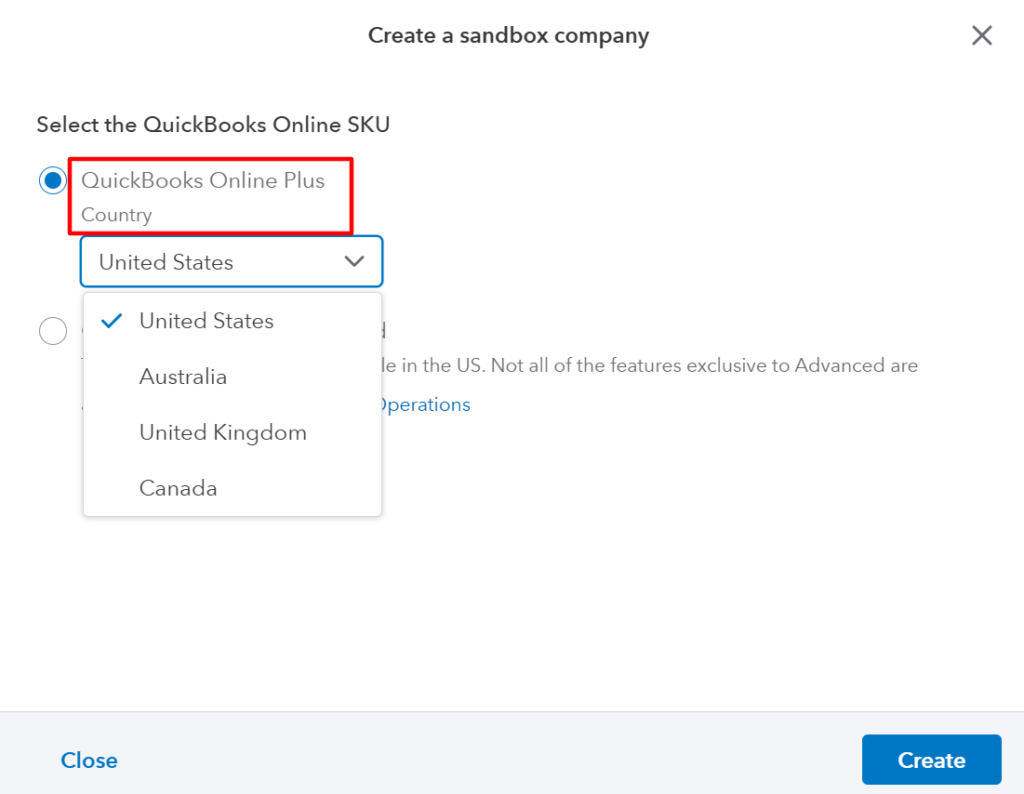
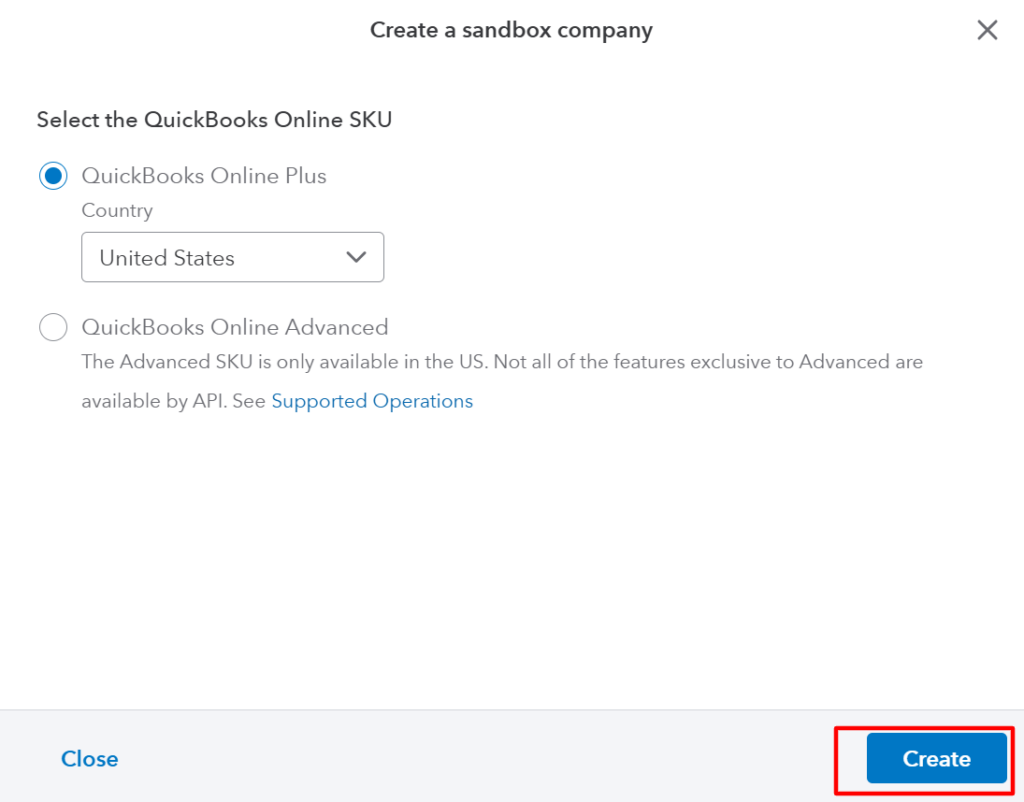
Step 6: Select a Country and Create.

Choose your preferred country, then click on the Create button.

Quickbook integration

Your new QuickBooks Sandbox company will be created successfully.

Testing the QB Sync Made Easy App

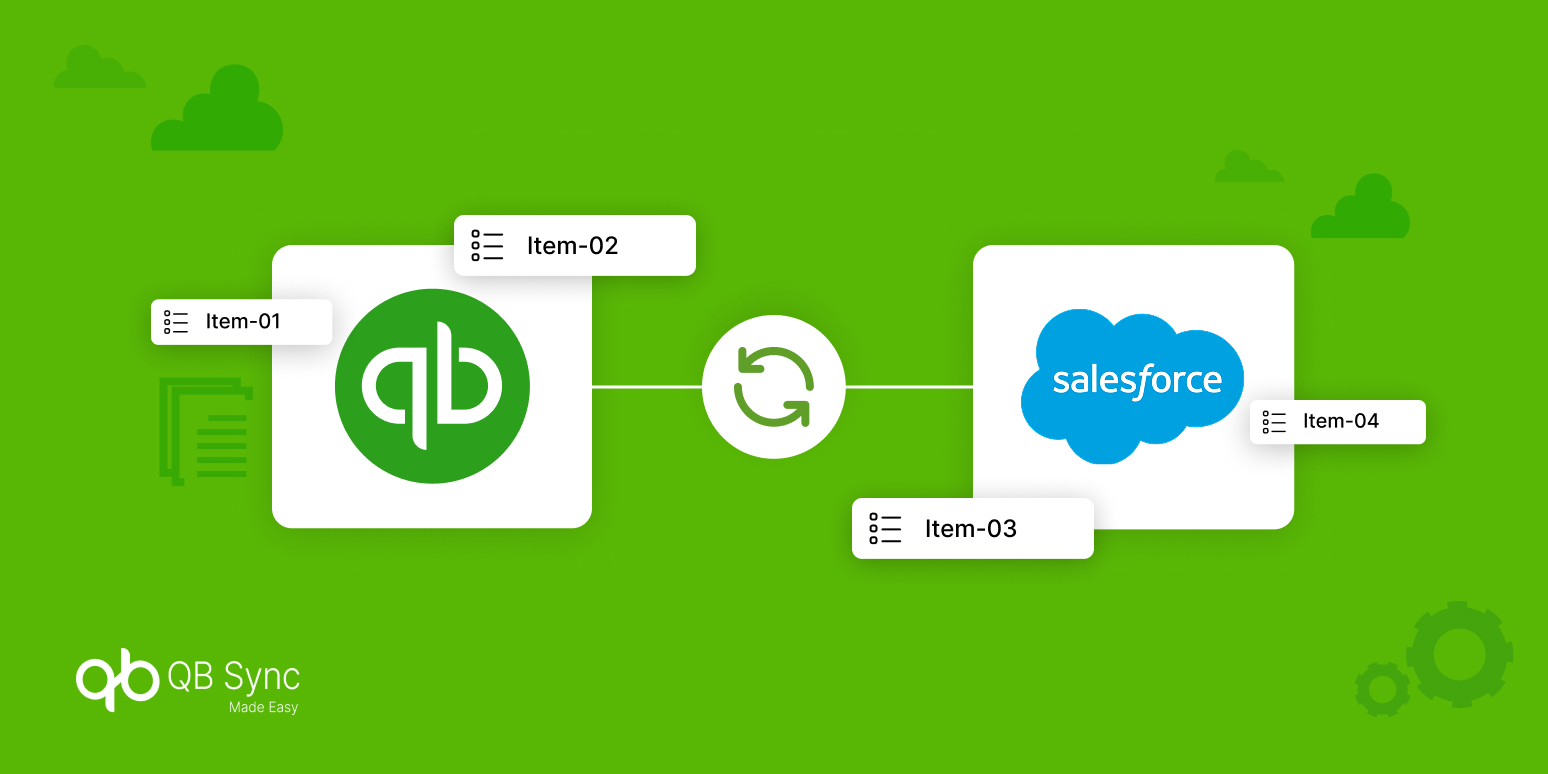
After creating your sandbox, you can connect it to the Salesforce QuickBooks integration solution, the QB Sync Made Easy app. This allows you to test all app functionalities – such as syncing data, transactions, and records to ensure everything works smoothly before connecting it to your live QuickBooks company.

Note: You can create a maximum of 10 sandbox companies in a single QuickBooks Developer organization.

Conclusion

These are the steps you need to follow to successfully create a QuickBooks Sandox company. Furthermore, to streamline the workflow and data exchange between Salesforce and QuickBooks, you can utilize the efficiency of Salesforce and QuickBooks Online integration – QB Sync Made Easy. 


It’s like a connector that automates the data flow among these platforms to simplify the management of accounting and sales data. From BI-Directional Sync to multi-currency support, providing a 360-degree view of sales and financial data for informed decision-making.

Frequently Asked Questions

A QuickBooks Sandbox company is a test environment provided by Intuit that allows users to safely test integrations, workflows, and data syncing without impacting live QuickBooks data.
Using a sandbox helps you validate your Salesforce QuickBooks integration setup, test data syncing, and identify errors early—without risking financial or accounting data in your production QuickBooks account.
Yes. You can fully test the Salesforce and QuickBooks Online integration using QB Sync Made Easy by connecting it to a QuickBooks Sandbox company before going live.
Absolutely. A sandbox environment is ideal for testing a Salesforce connector by QuickBooks, including syncing customers, invoices, products, and transactions with Salesforce.
You can create up to 10 sandbox companies under a single QuickBooks Developer organization
No. Sandbox data is mock or test data generated for development and testing purposes only. It does not reflect real financial transactions and will not affect your live QuickBooks Online account.
  • Automating data sharing between Salesforce & Quickbooks

Build With by HIC Global Solutions © 2026